Rota: planning the week's rota
Purpose
Plan each week so every room stays in ratio, with the right qualifications in the right place, at a sensible cost, and let staff see their shifts.
Before you start
- Children's booking patterns are up to date: the rota plans against the children booked in.
- Staff records have their working pattern, contracted hours, qualifications and paediatric first aid.
- Your ratios and staffing rules are set.
Generate the week
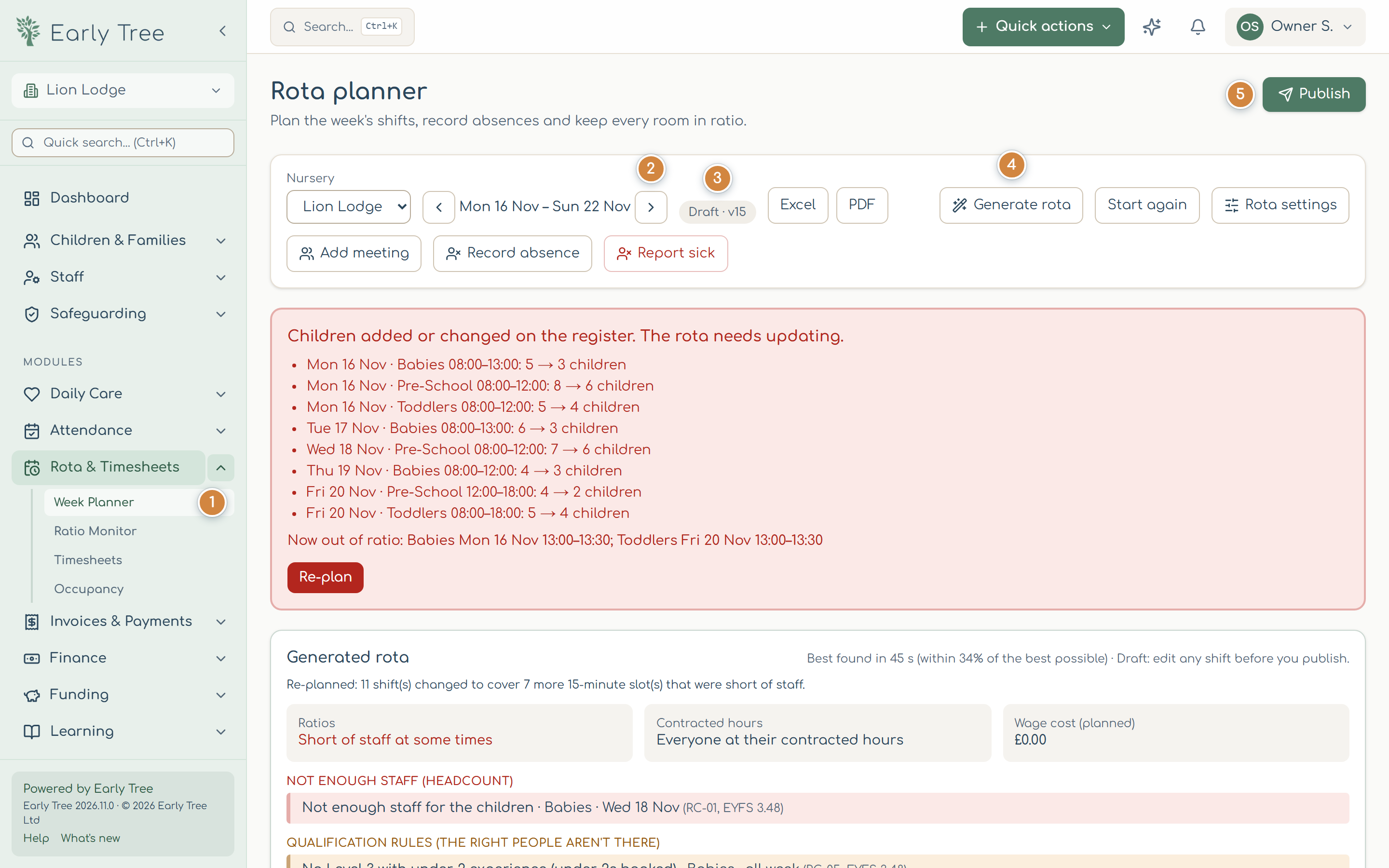
- In the menu, select Rota & Timesheets, then Week Planner 1.
- Use the arrows 2 to choose the week. The badge 3 shows where the week is: Not started, Draft, Published or Locked.
- Select Generate rota 4. Early Tree plans the shifts and shows a summary: whether every room is in ratio, contracted hours, the planned wage cost, and anything it couldn't solve (not enough staff, or the right qualifications not there).
Check ratios and adjust shifts
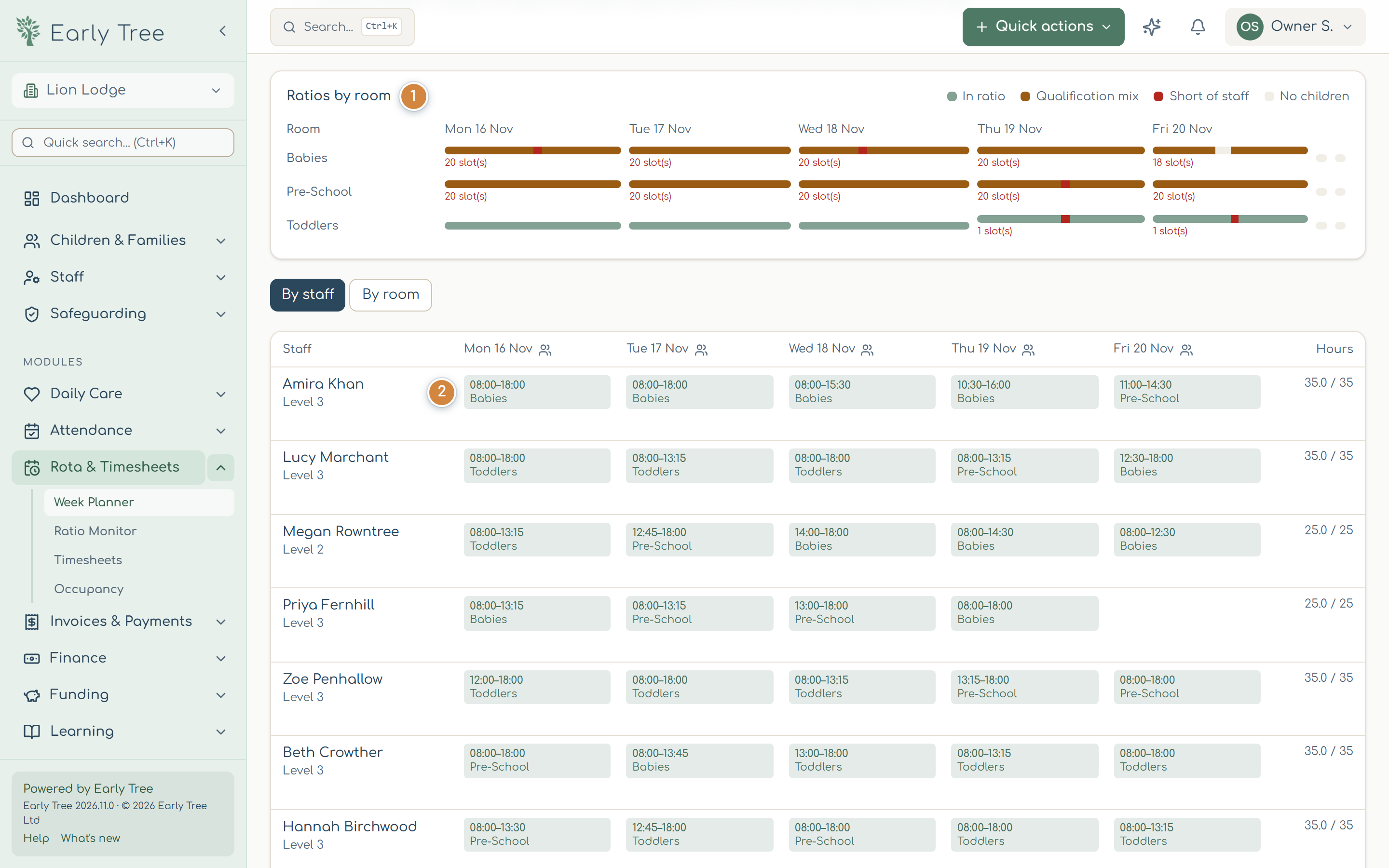
- Ratios by room 1 shows each room's day as a strip: In ratio, Qualification mix, Short of staff or No children. A count under a day shows how many 15-minute slots need attention.
- The staff grid shows each person's shifts 2 and their planned hours against contracted hours. By room shows the same week room by room.
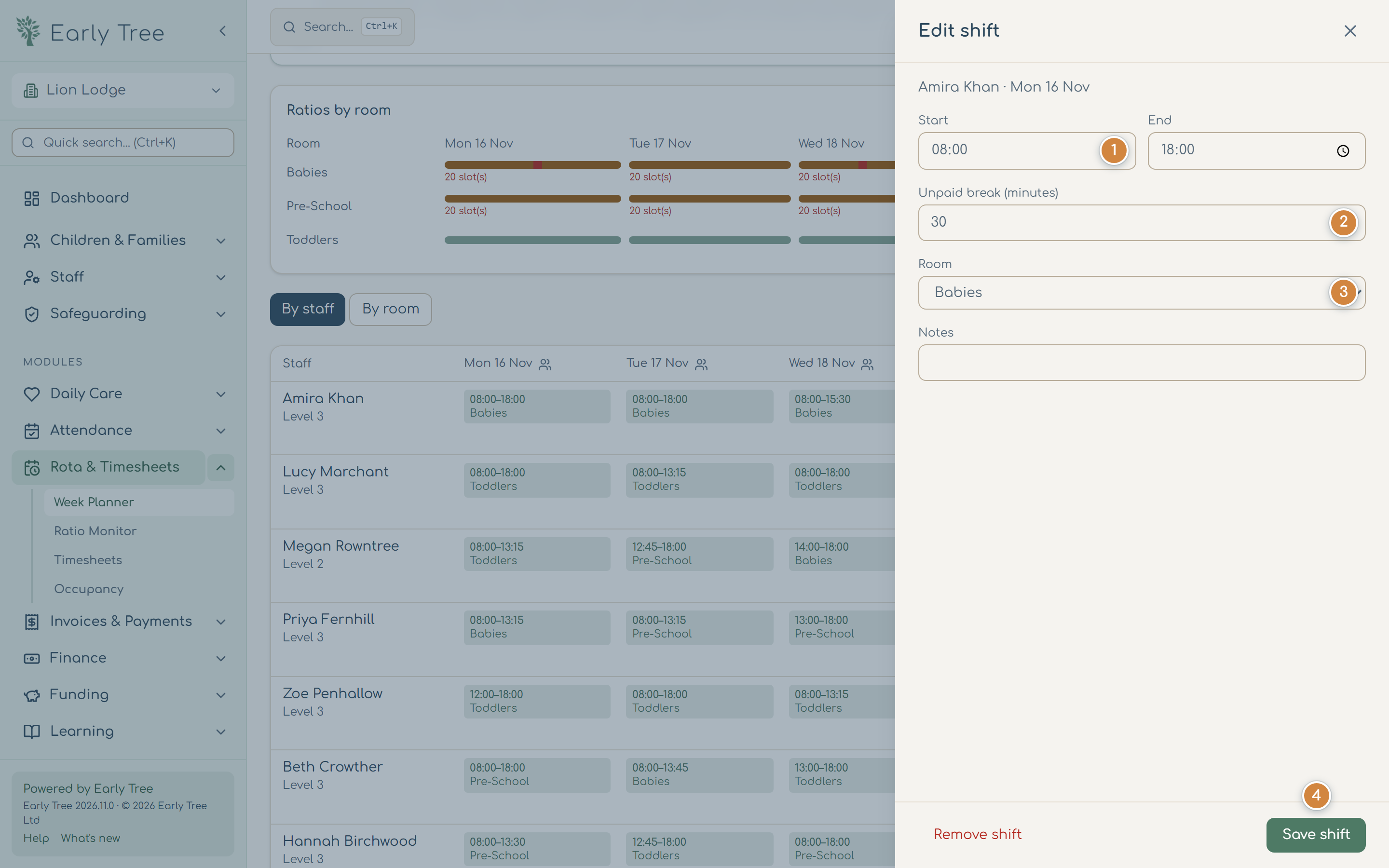
- To change a shift, select it. Change the Start and End 1, the Unpaid break (minutes) 2 and the Room 3, then Save shift 4. To add one, hover over an empty day and select the add button. You can also drag a shift to another day.
Publish
- When the week is right, select Publish 5 and confirm. Staff on the rota can see their shifts and are notified.
- If something changes after publishing (a child added, someone off sick), use Re-plan from now. Early Tree proposes changes; select Accept and notify to apply them, or Cancel.
- When the week is over and timesheets are approved, Lock it so it can't be changed.
What you should see
The badge shows Published with its version. Staff see their shifts, and the Ratio Monitor shows the day's ratios against the published rota.
Timesheets
Rota & Timesheets › Timesheets compares staff clock-ins with the rota. Fix anything flagged (each correction needs a reason, kept in the audit log), then select Approve week once the week has finished. Payroll (.xlsx) downloads the approved hours.
Common problems
- "Still out of ratio where staff did not allow".
- There aren't enough staff, or the right qualifications, at those times. Add a shift, move someone, or check absences and staff availability.
- "Children added or changed on the register. The rota needs updating."
- Bookings changed after the rota was made. Select Re-plan to update it.
- "Someone else changed this week while you were editing".
- Select Reload and make your change again.
- There's no Generate rota button.
- The week is already published or locked. Use Re-plan from now for a published week.