Getting started: finding your way around
Purpose
Get to know the parts of Early Tree you'll use every day: signing in, choosing your nursery, searching, and the dashboard that tells you what needs doing.
Before you start
- Your nursery invites you to Early Tree; you sign in with Early Tree ID, the same account for every Early Tree app.
Sign in
- Go to app.earlytree.co.uk. You're taken to Early Tree ID.
- Enter your Email and Password, and select Sign In. If you've forgotten your password, select Forgotten password?.
- If you've set up two-step verification, enter the code from your authenticator app.
Find your way around
- The nursery selector 1 at the top of the menu chooses which nursery you're looking at, or All Nurseries if you work across more than one. Most pages show the nursery chosen here.
- Quick search 2 finds a child, member of staff, parent, session type or extra as you type. Press Ctrl+K to jump to it.
- Quick actions 3 takes you straight to the things you do most: Today's register, Key children, New observation, Daily diary and Message parents. The bell next to it shows your notifications.
- Your name 4 opens your account: Settings and Sign Out.
- The dashboard's Requires Attention list 5 shows what needs doing, such as registers not yet signed off, DBS rechecks due or expired training, children without emergency contacts, and onboardings waiting for review. Select View to go straight to it.
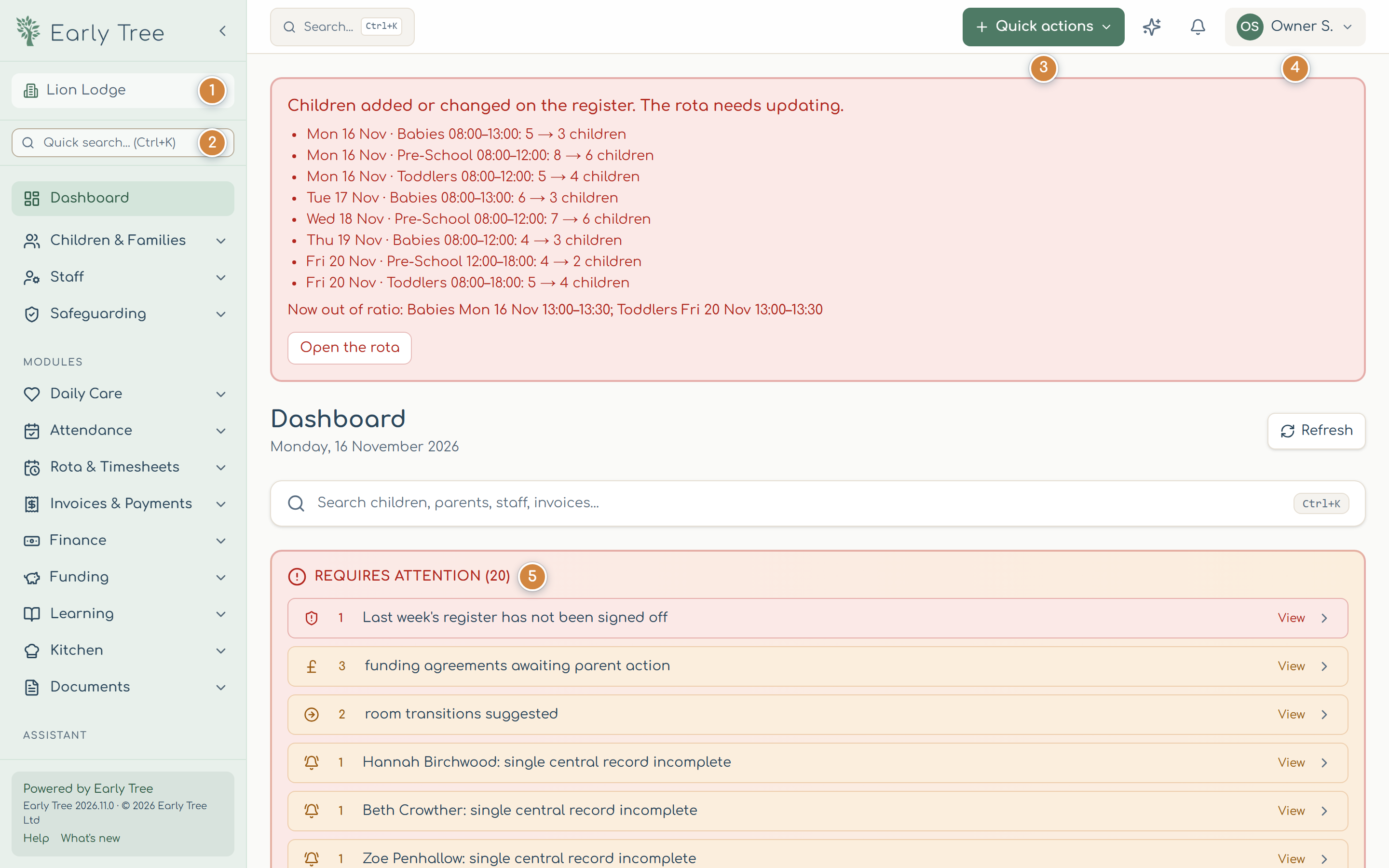
The menu on the left is grouped by area. You only see the areas your nursery uses and your role allows; an area your nursery's plan doesn't include shows a lock.
Your account
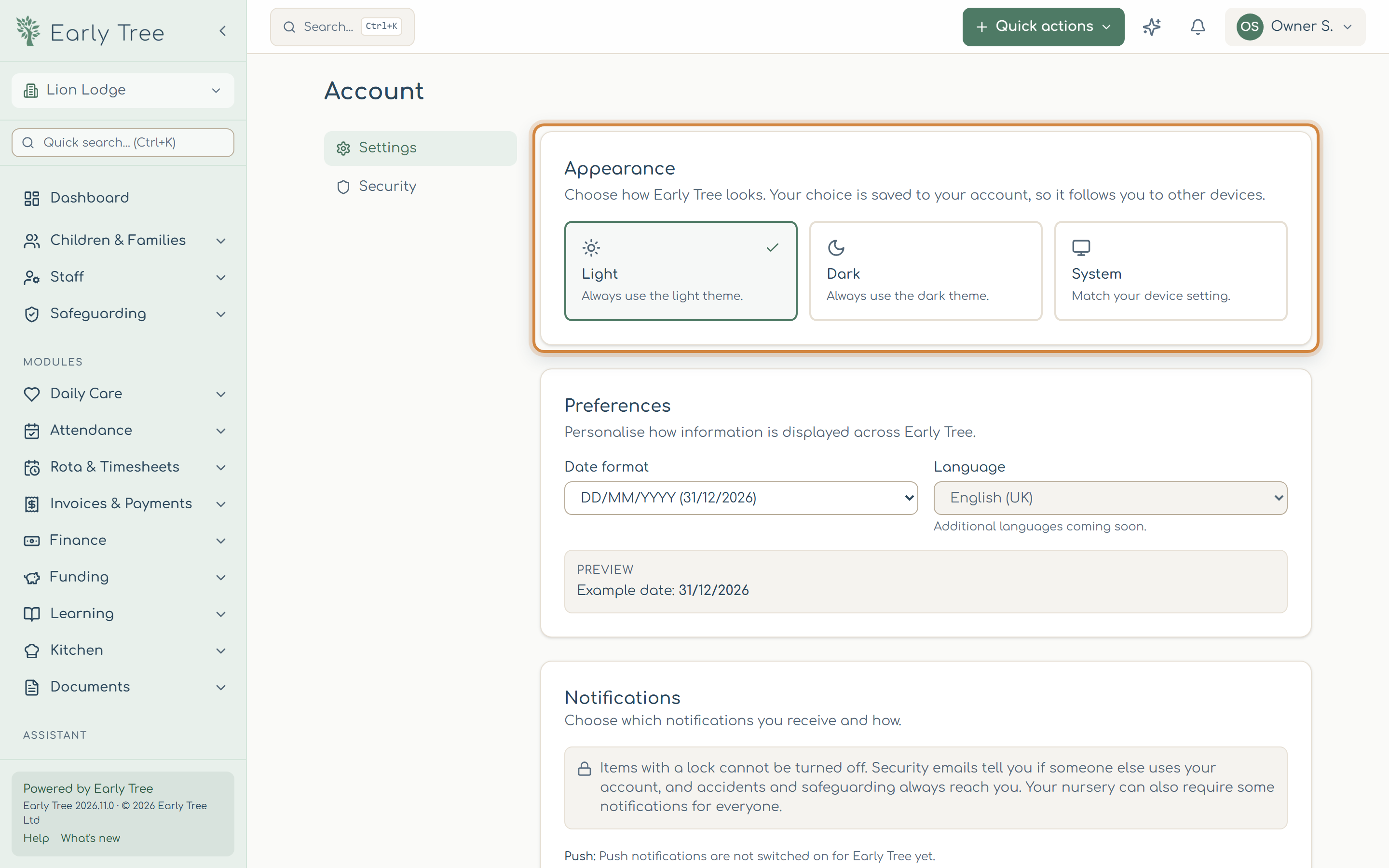
Open your name, then Settings. Under Appearance, choose Light, Dark or System (to match your device); your choice follows you to other devices. Under Preferences, choose your date format. Your notification choices are here too.
Common problems
- A page I expected isn't in the menu.
- Your role doesn't include it, or your nursery doesn't use that area. Ask your manager.
- A page is empty.
- Check the nursery selector at the top of the menu: you may be looking at a different nursery.
- I've forgotten my password.
- Select Forgotten password? on the sign-in page and follow the email.