Registers: signing children in and out
Purpose
Sign each child in as they arrive and out as they leave, so that the register always shows who is in the building, when they arrived and left, who brought and collected them, and which member of staff received and released them.
The register is a legal record. The EYFS statutory framework for group and school-based providers (effective 1 September 2026) requires a daily record of the names of the children cared for on the premises and their hours of attendance (paragraph 3.104), and that children are only released into the care of individuals of whom the parent or carer has explicitly notified the provider (paragraph 3.89). The register also feeds your fire register, room ratios, occupancy, funded hours and invoices, so sign children in and out at the time it happens.
Before you start
- You can open Attendance › Daily Register. If you can't see it, ask your manager: it depends on your role.
- The child is booked in for today. Booked sessions come from the child's booking pattern; a child with no session today isn't on the register (see Common problems).
- The child's contacts are up to date, so the adults who can drop off and collect appear as cards to choose from.
Open the register
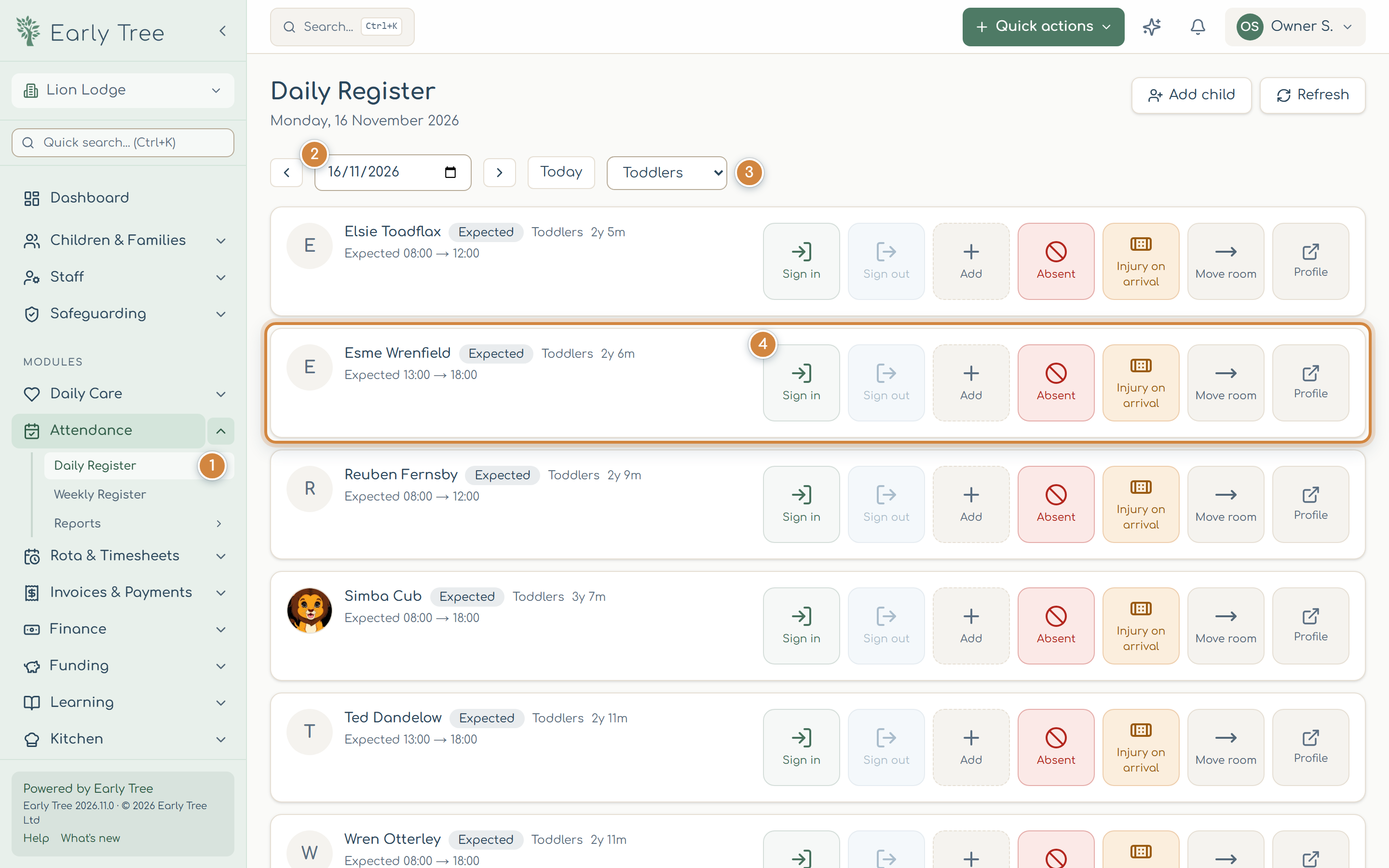
- In the menu, select Attendance, then Daily Register 1. The register opens on today's date.
- To look at another day, use the arrows either side of the date, or choose a date 2. Today brings you back.
- Choose your room from the room list 3 so you only see the children in it.
- Find the child. Each child has a card with their name, status, room, age and expected times, and a row of tiles. Select Sign in 4 when the child arrives.

Sign a child in
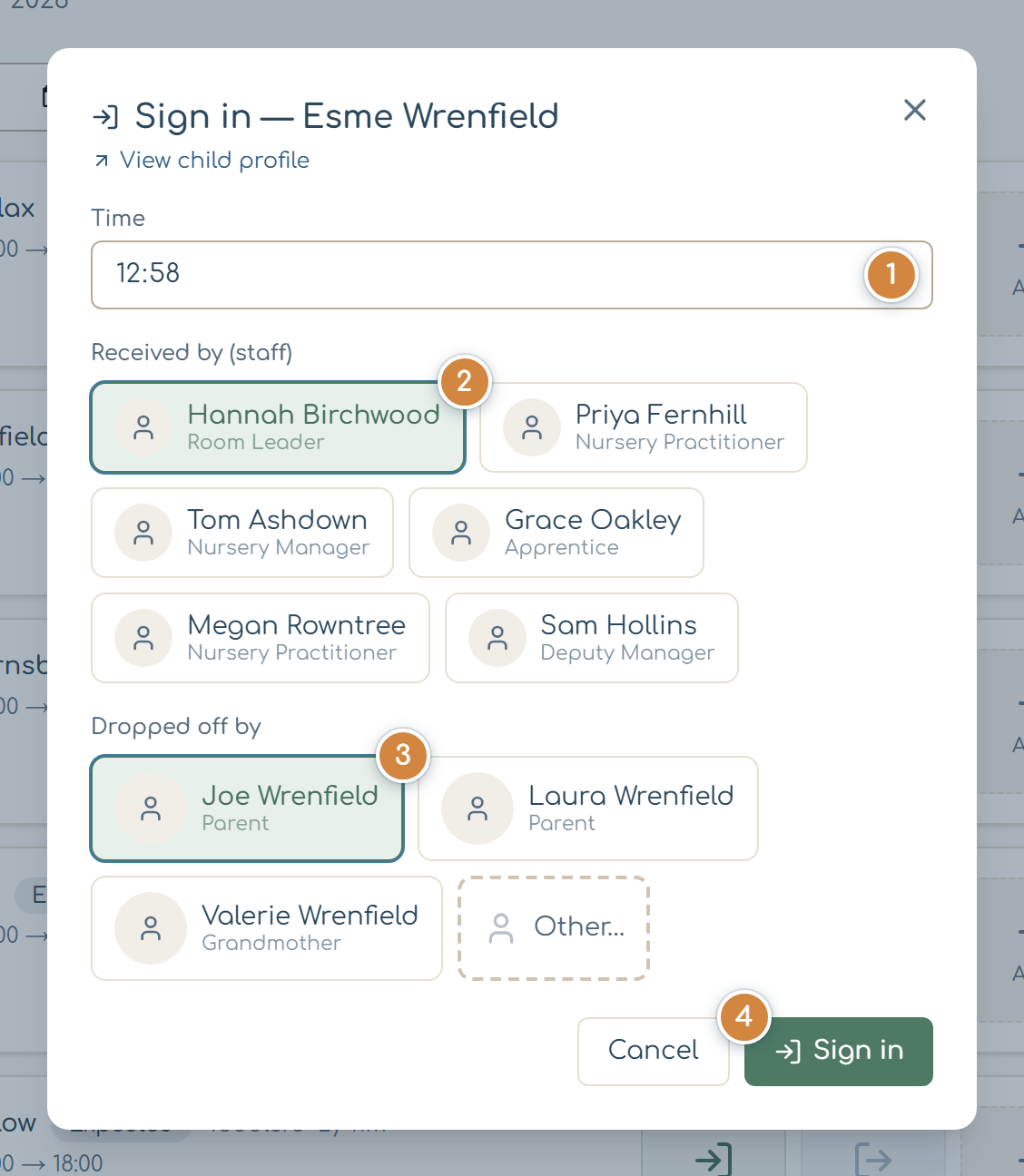
- On the child's card, select Sign in.
- Check the Time 1. It's filled in with the time now; change it only if the child actually arrived at a different time.
- Under Received by (staff) 2, check that the member of staff receiving the child is selected. It starts as you.
- Under Dropped off by 3, select the adult who brought the child. The child's contacts are listed with how they're related. If the adult isn't listed, select Other… and type their name.
- Select Sign in 4.

Select Injury on arrival on the child's card to record it with the parent at the door. See Accidents and incidents.
What you should see
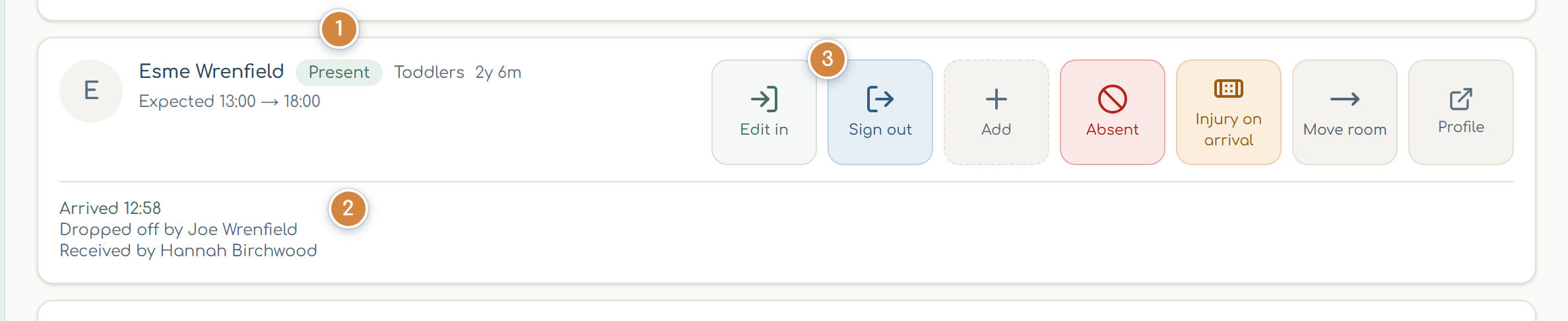
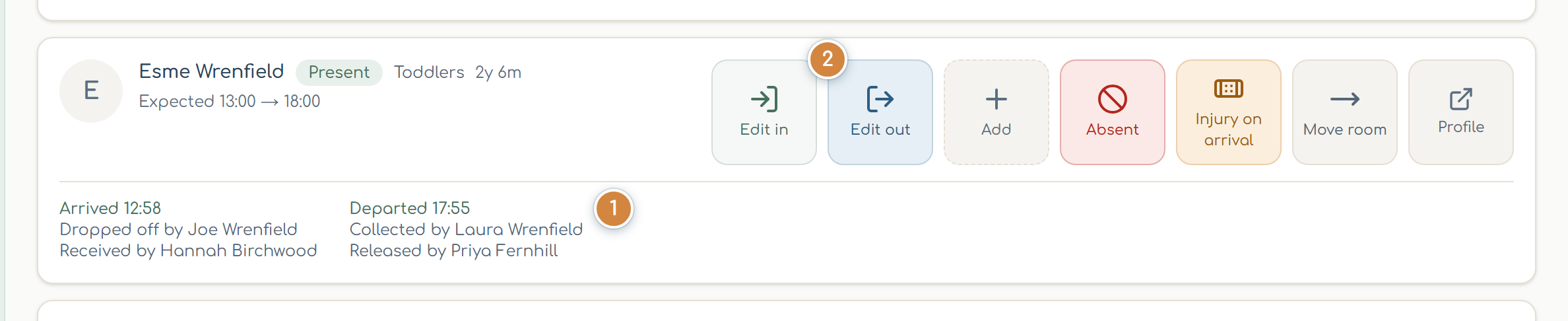
The window closes and the child's card shows Present 1, with Arrived and the time, who dropped them off and who received them 2. The Sign in tile now reads Edit in, and Sign out 3 becomes available.
Sign a child out
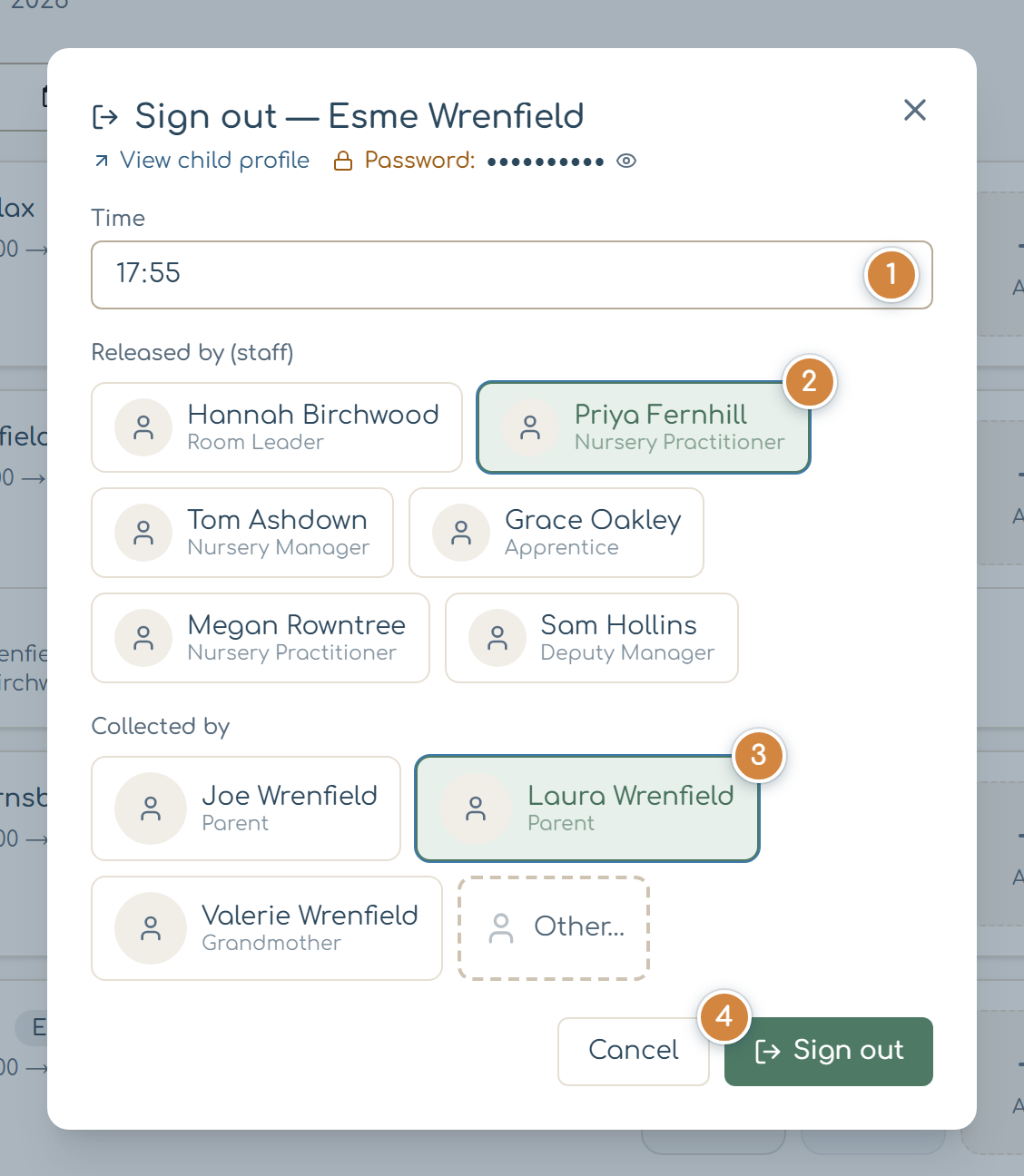
- When the child is collected, select Sign out on their card. It's only available once the child is signed in.
- If the family has a collection password, it's shown next to the child's name, hidden. Select the eye to show it, and ask the adult collecting for it before you release the child.
- Check the Time 1.
- Under Released by (staff) 2, select the member of staff handing the child over.
- Under Collected by 3, select the adult collecting. Select a contact's photo to see it larger and check it's them. Only release a child to an adult the parent or carer has told you about (EYFS paragraph 3.89); if the adult isn't one of the child's contacts, follow your nursery's collection procedure before using Other….
- Select Sign out 4.
What you should see
The child's card shows Departed and the time, who collected them and who released them 1. The child stays Present for the day, because they attended; the departure time is what shows they've gone. The Sign out tile now reads Edit out 2.
If the child is collected late
If the child is collected after closing time and your nursery charges for late collection, Early Tree shows Late pickup detected after you select Sign out, with how many minutes late and the charge. Select Confirm charge to add it to the family's account, or Waive charge and give a reason (for example, the first time it has happened). Either way, the sign-out is saved.
Correct a time
If a time was recorded wrongly, select Edit in or Edit out on the child's card, change the time, and fill in Override reason (for example, "Forgot to sign in, actual arrival was 08:00"). The reason is kept in the session notes as part of the record.
Common problems
- The child isn't on the register.
They have no session booked for that day. Check the date and the room list first. If they really are attending, select Add child at the top of the register to add them for the day, and ask the office to check their booking pattern.
- The tiles are greyed out and a banner says the register is locked.
That day's register has been signed off, so it can't be changed. Ask a manager: corrections after sign-off are made on the weekly register.
- Sign out is greyed out.
- The child hasn't been signed in. Sign them in first, with the time they actually arrived.
- The adult collecting isn't listed.
Don't release the child until you've followed your nursery's collection procedure and spoken to the parent. Contacts are added on the child's record (Profile on the card).
- The child is off today.
- Select Absent on their card instead, so the absence and its reason are recorded.
- You see "Time must be HH:mm".
- Type the time in 24-hour hours and minutes, for example 08:05 or 17:30.
Related guides
- About registers
- Recording an absence (coming soon)
- Moving a child to another room for the day (coming soon)