Children: the child's record
Purpose
Find everything about one child in one place, and keep it up to date: a new address, a change of key person, a new allergy. You change one section at a time, so nothing else on the record is touched.
Before you start
- What you can see depends on your role. Health and other special category details (UK GDPR Article 9) are only shown to people with access to them; everyone else sees a short message instead.
Find your way around the record
- Open Children & Families › Children and select the child.
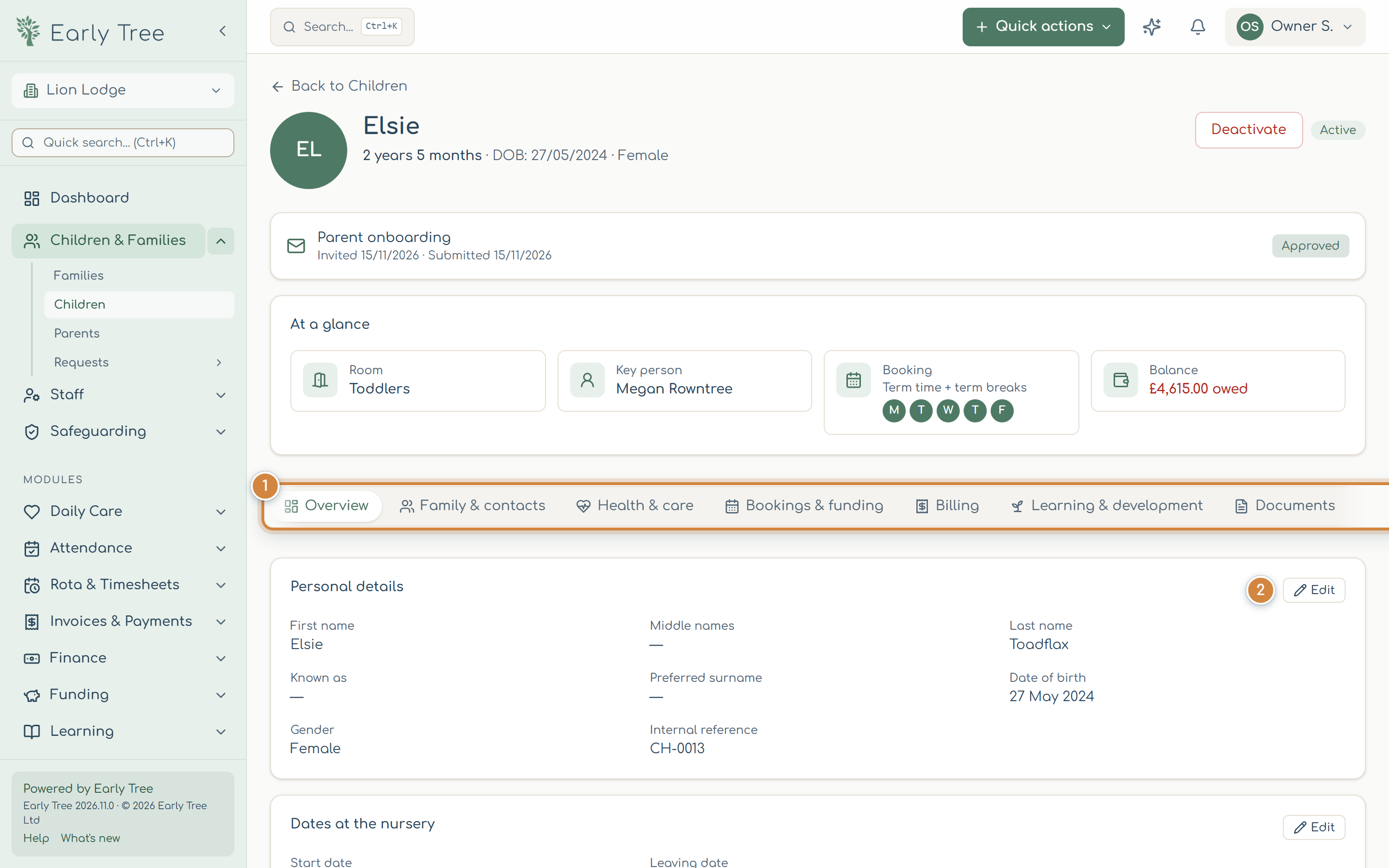
- The top of the record shows the child's name, age and date of birth, any parent onboarding, and At a glance: their room, key person, booking pattern and account balance.
- The tabs 1 split the record into Overview, Family & contacts, Health & care, Bookings & funding, Billing, Learning & development, Documents and History. You only see the tabs your role allows.
Change one section
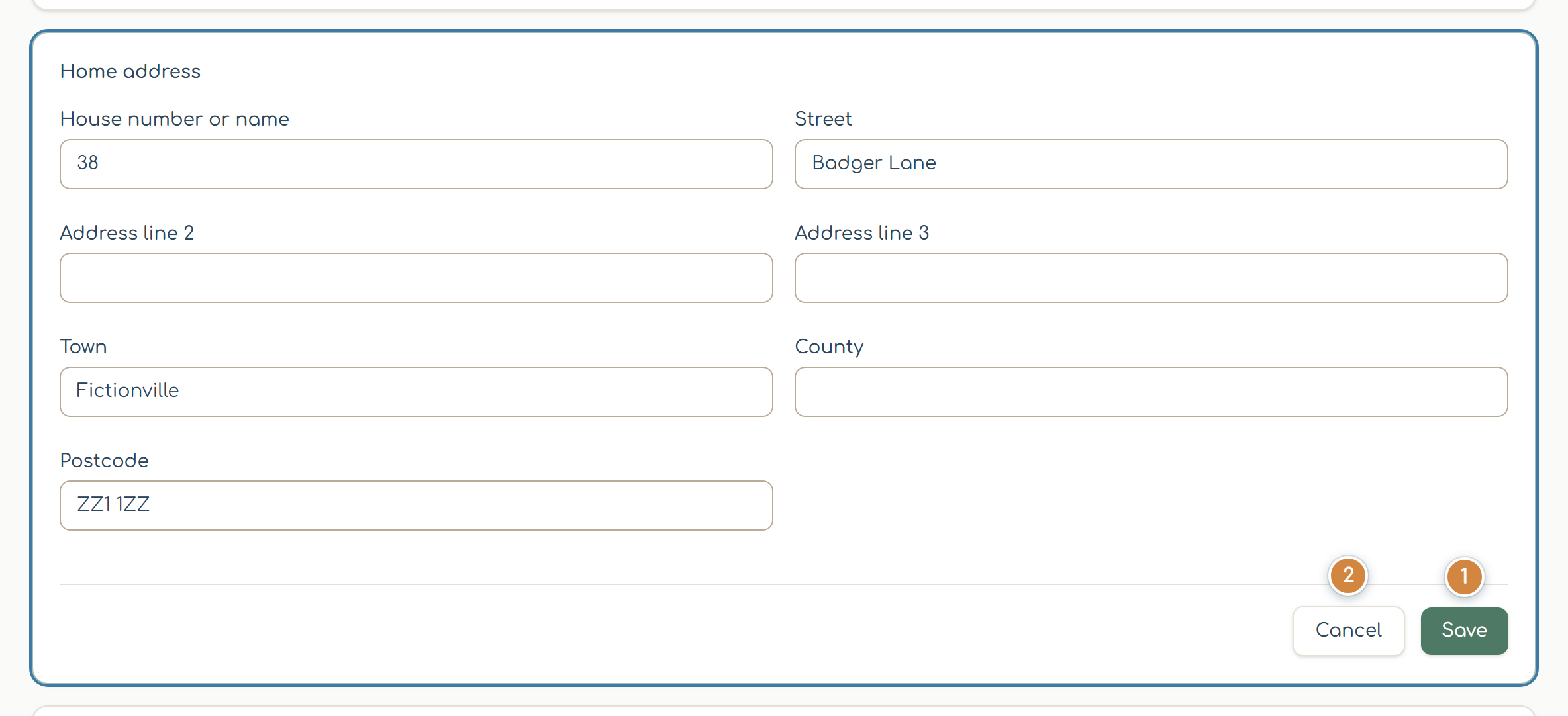
- Find the section you need, for example Home address on Overview, and select its Edit button 2.
- The section opens as a form in place. Make your changes.
- Select Save 1 to keep them, or Cancel 2 to leave the section as it was.
What you should see
The section closes, shows your changes, and Saved appears briefly. The rest of the record is unchanged.
The key person
Every child must be assigned a key person (EYFS paragraph 3.42). The key person shows in At a glance. To change it, on Overview use the Key Workers card: + Assign Key Worker, then Make Primary for the main key person. Early Tree suggests at least two key workers, so there is always someone the child knows when one is away.
Common problems
- There's no Edit button.
- Your role can see this section but not change it. Ask your manager.
- Another section won't open for editing.
- Only one section can be open at a time. Save or cancel the one that's open first.
- A tab or section I need is missing.
- It's limited to certain roles (for example health and safeguarding details). Ask your manager if you need access.
- The child has left.
- Set their Leaving date under Dates at the nursery. Use Deactivate only for a record that shouldn't be used at all.