Children: adding a child
Purpose
Create a child's record when a new child joins, so they can be booked in, appear on the register and be invoiced. If you'd rather the parents fill in the details themselves, invite them instead (see Families and parent onboarding).
Before you start
- Have the child's full name, date of birth and start date.
- Know whether the child has brothers or sisters at the nursery already. If they do, link the child to that family rather than creating a new one, so parents and invoices are shared.
- Have at least one emergency contact's name and phone number.
Open the form
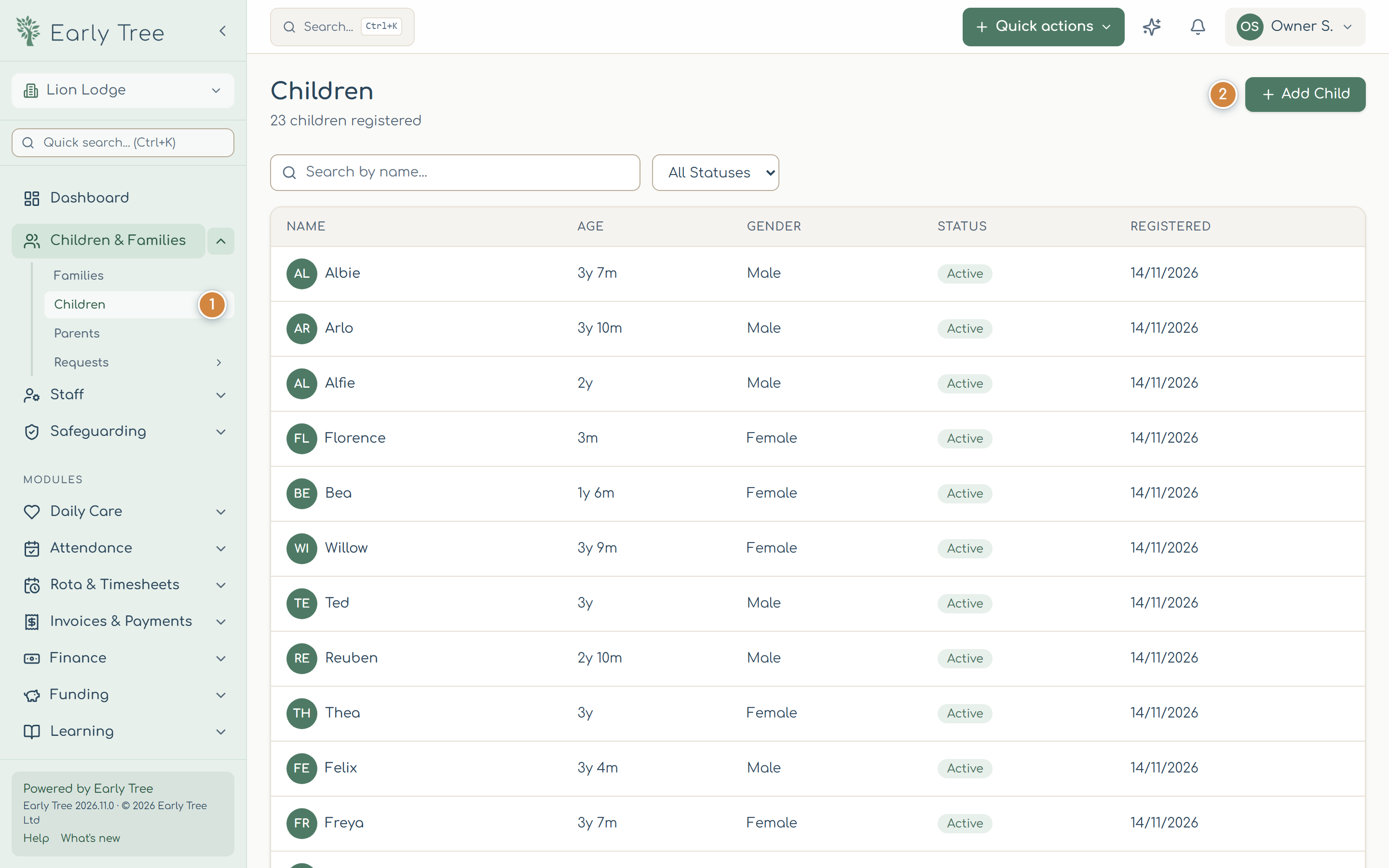
- In the menu, select Children & Families, then Children 1.
- Select Add Child 2.
Enter the child's details
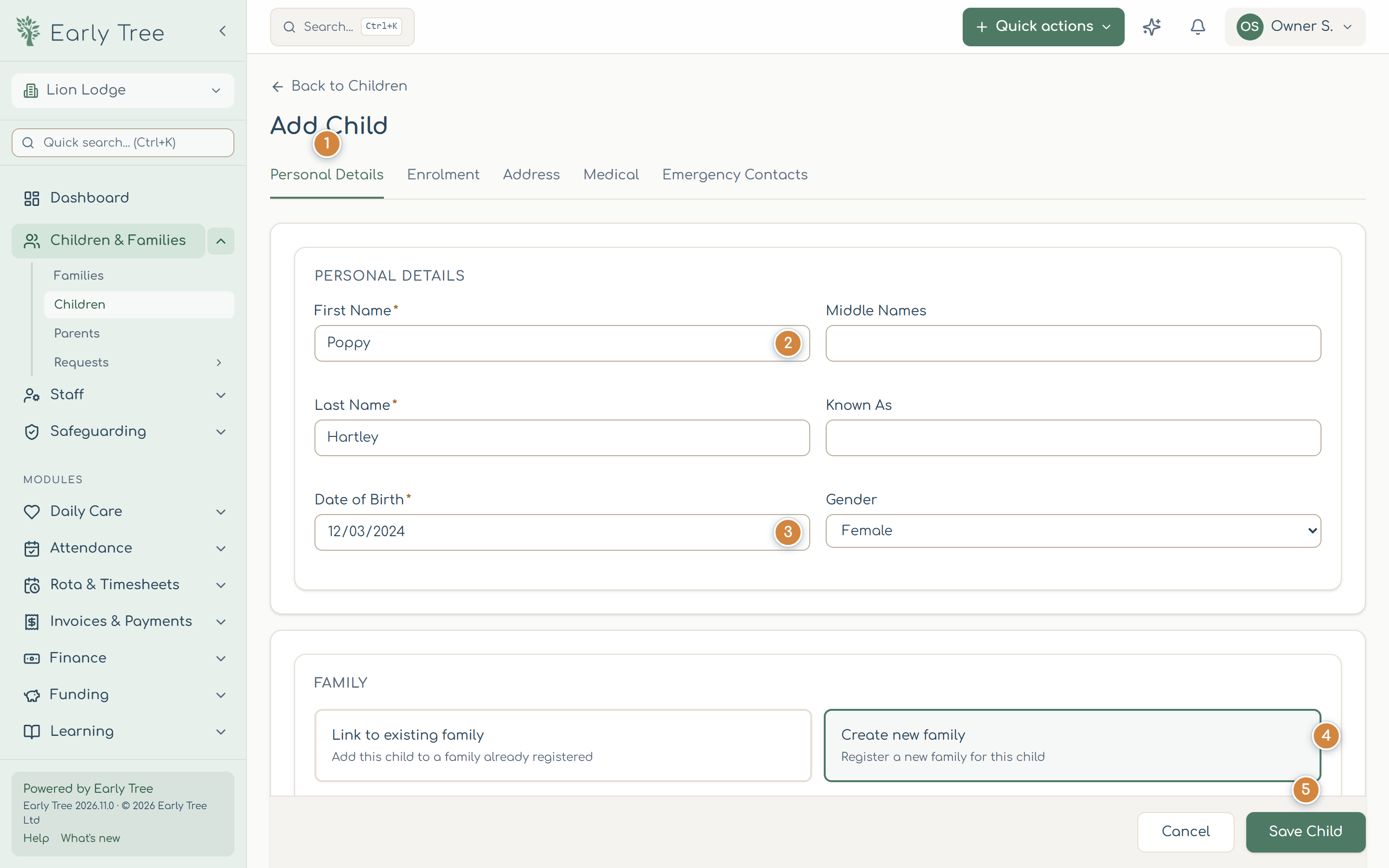
The form has five tabs 1: Personal Details, Enrolment, Address, Medical and Emergency Contacts. Fields marked with an asterisk (*) are required. Nothing is saved until you select Save Child, so you can move between the tabs freely.
- On Personal Details, enter the First Name 2, Last Name and Date of Birth 3. Known As is the name the child uses day to day, if it's different.
- Under Family, choose Link to existing family for a brother or sister of a child you already have, or Create new family 4 and enter the Family Name. If you type a surname that matches a family you already have, Early Tree asks whether the child is related; select Yes, link family if they are.
- On Enrolment, enter the Start Date and tick the nursery or nurseries the child will attend.
- On Address, enter the child's home address.
- On Medical, switch on Has Allergies, Has Medical Conditions or Has Dietary Requirements as needed and fill in the details. Record the parent's answers to Consent to Administer Medicine and Consent to Emergency Treatment.
Add emergency contacts
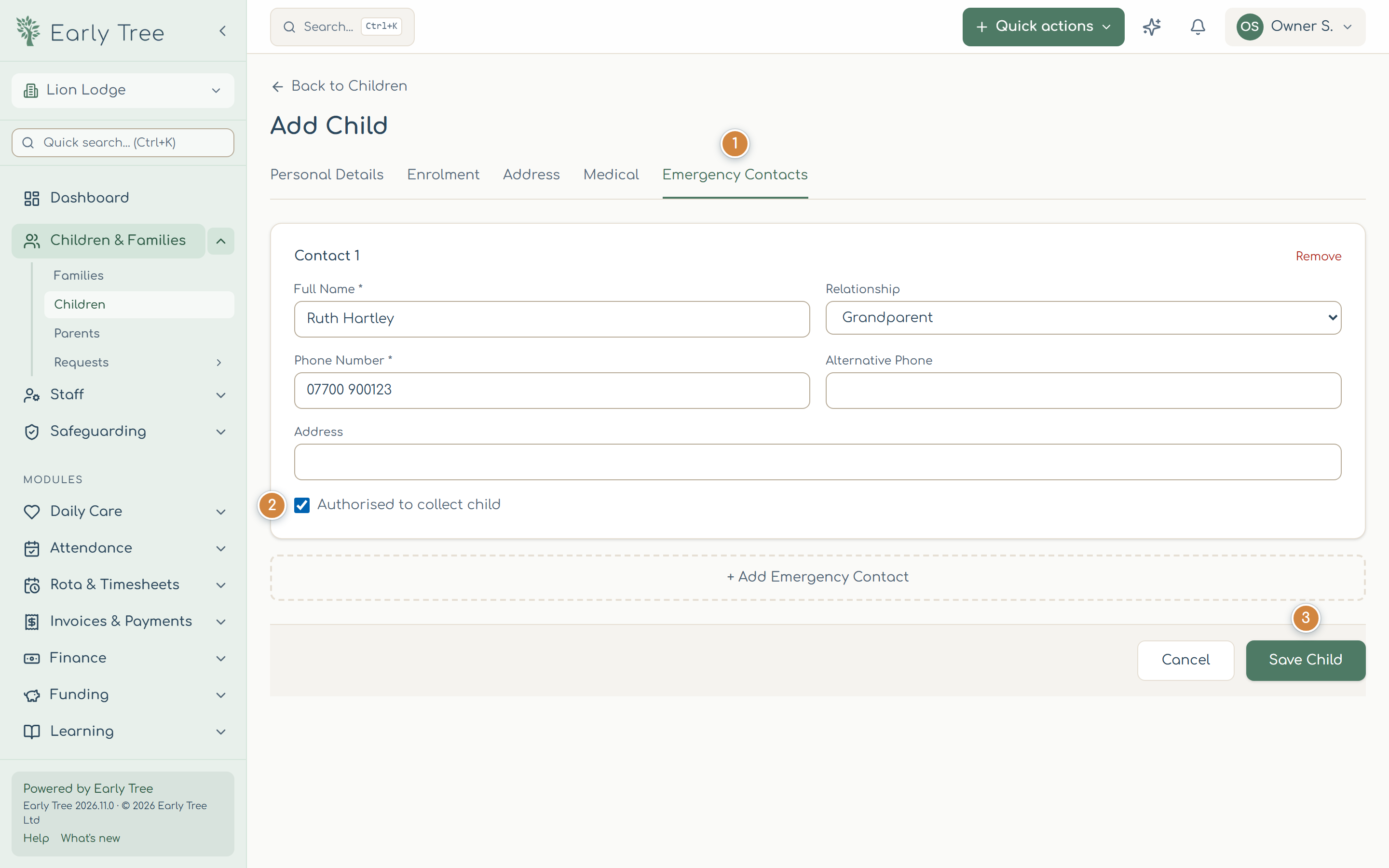
- Open the Emergency Contacts tab 1 and select + Add Emergency Contact.
- Enter their Full Name, Relationship and Phone Number.
- Tick Authorised to collect child 2 only if the parent has told you this person may collect the child. Leave it unticked for someone you should only phone.
- Add more contacts the same way. Where possible, hold more than two emergency contact numbers for each child (EYFS paragraph 3.99).
- Select Save Child 3.
What you should see
The child's record opens, showing their details. They appear in Children & Families › Children. To put them on the register, give them a booking pattern on the record's Bookings & funding tab.
Common problems
- Save Child does nothing and a tab shows a red dot.
- A required field on that tab is empty. Open the tab with the red dot; the message under the field says what's missing.
- "At least one nursery must be selected".
- On Enrolment, tick the nursery the child will attend.
- I started from a family's page, but the family isn't filled in.
- Choose Link to existing family and pick the family again before you save.
- I added the child twice.
- Keep the record that has the bookings and details, and select Deactivate on the other one, so it no longer appears on registers or invoices.