Reports: occupancy, hours and finance
Purpose
Get the numbers you need to run the nursery: how full each room is, the hours and cost of each child's care, and your invoices, payments and debt for the accounts.
Occupancy
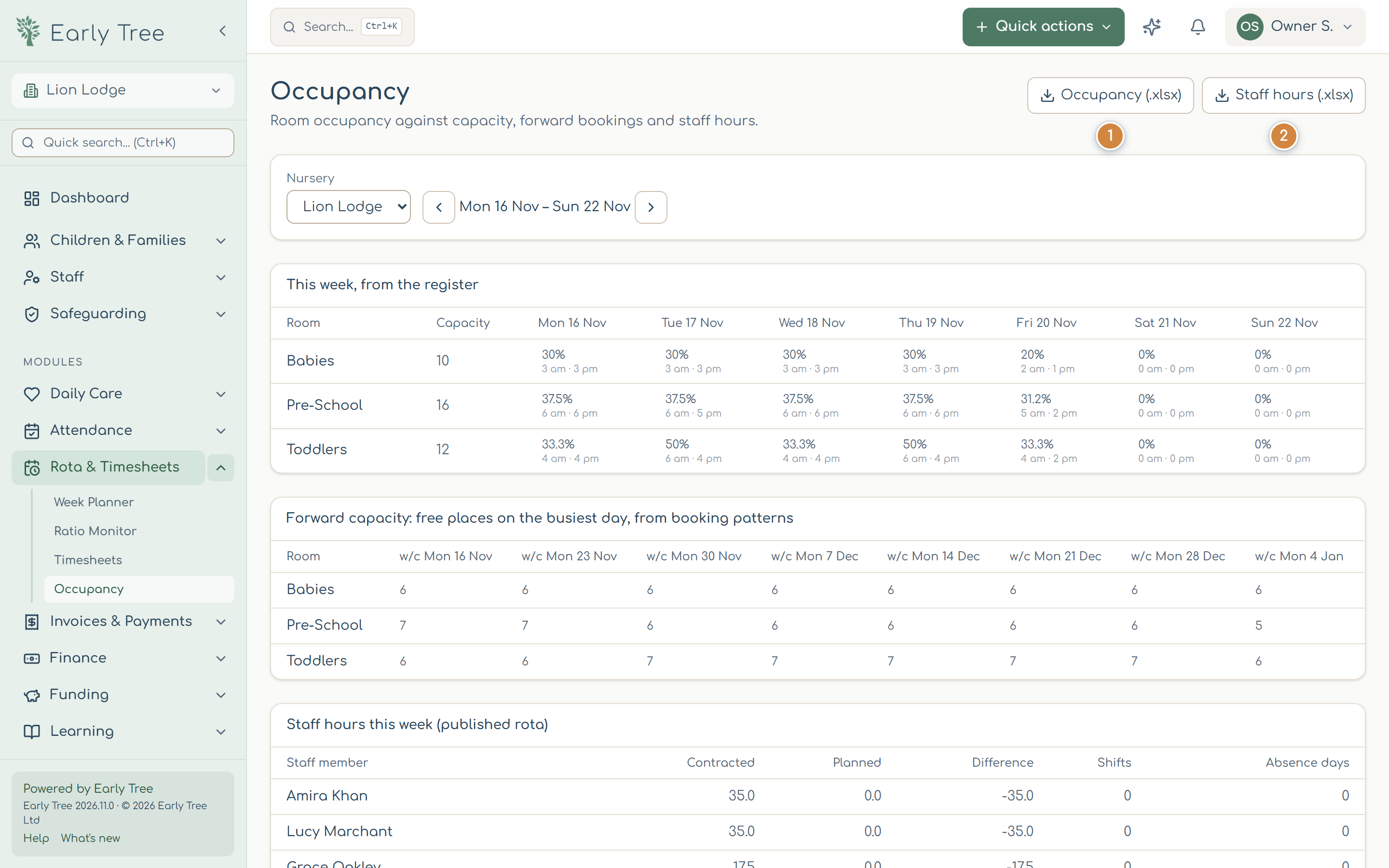
- Select Rota & Timesheets › Occupancy. Choose the Nursery and week.
- This week, from the register shows each room's occupancy against capacity. Forward capacity shows free places on the busiest day of each coming week, from booking patterns. Staff hours this week compares contracted and planned hours.
- Download Occupancy (.xlsx) 1 or Staff hours (.xlsx) 2.
Hours and cost
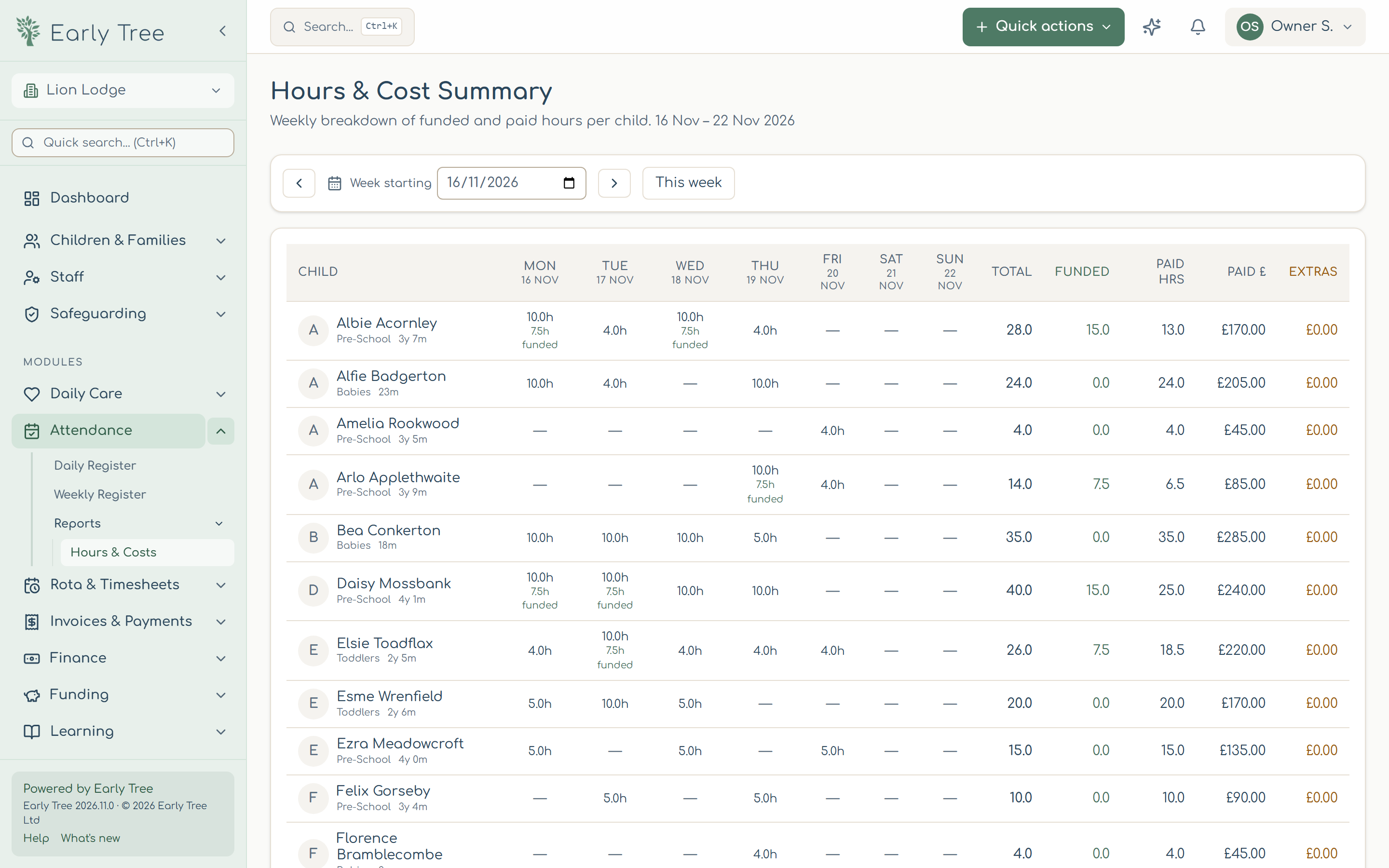
Select Attendance › Reports › Hours & Costs. For the week you choose, each child's hours by day, with funded and paid hours, the paid amount and extras.
Finance reports
- Select Finance › Reports.
- Choose the report: Invoices, Payments, Credit notes or Aged debt 1 (overdue balances by family in 0–30, 31–60, 61–90 and 90+ day bands).
- Set the dates (From and To are inclusive) and the Nursery.
- Choose Excel (.xlsx) or CSV 2. Leave Only released invoices ticked for your accounts.
- Select Generate & download 3.
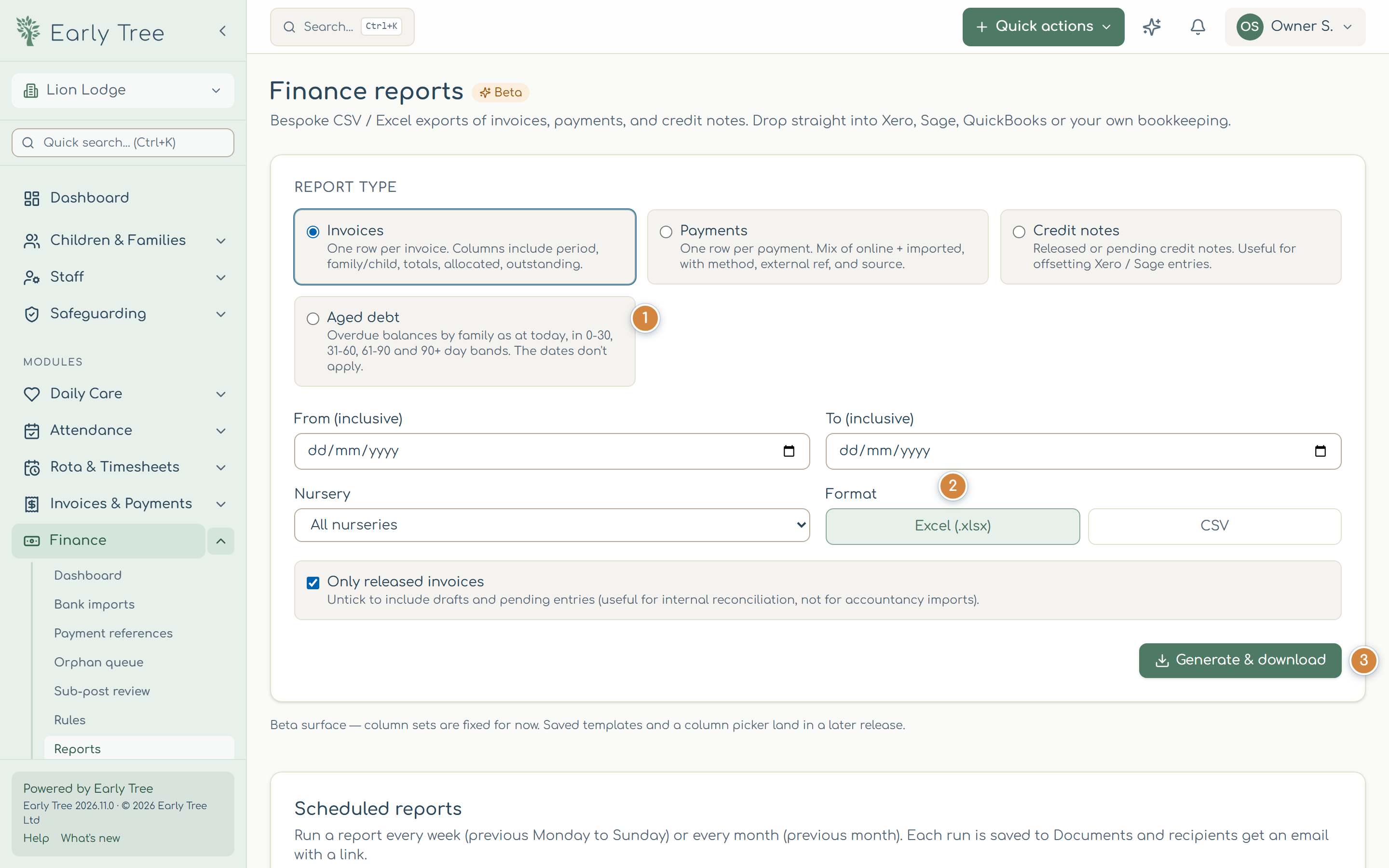
Scheduled reports, further down, runs a report every week or month, saves it to Documents and emails the people you choose a link.
Funding
Funding has the headcount export for your local authority: Download spreadsheet (.xlsx) or Download CSV. It contains parents' National Insurance numbers, so store and send it securely.
Common problems
- A report is empty.
- Check the dates and the nursery. Drafts aren't included while Only released invoices is ticked.
- Occupancy looks too low.
- It's worked out from the register. Check that registers are complete.