Settings: roles and permissions
Purpose
Decide what each role can see and do, so everyone has the access their job needs and no more. Records about children and staff include personal and special category data, so keep access to what each person needs (UK GDPR Article 5, data minimisation).
Before you start
- Early Tree comes with four built-in roles: Owner, Manager, Practitioner and Parent. You can change them or create your own.
Change a role
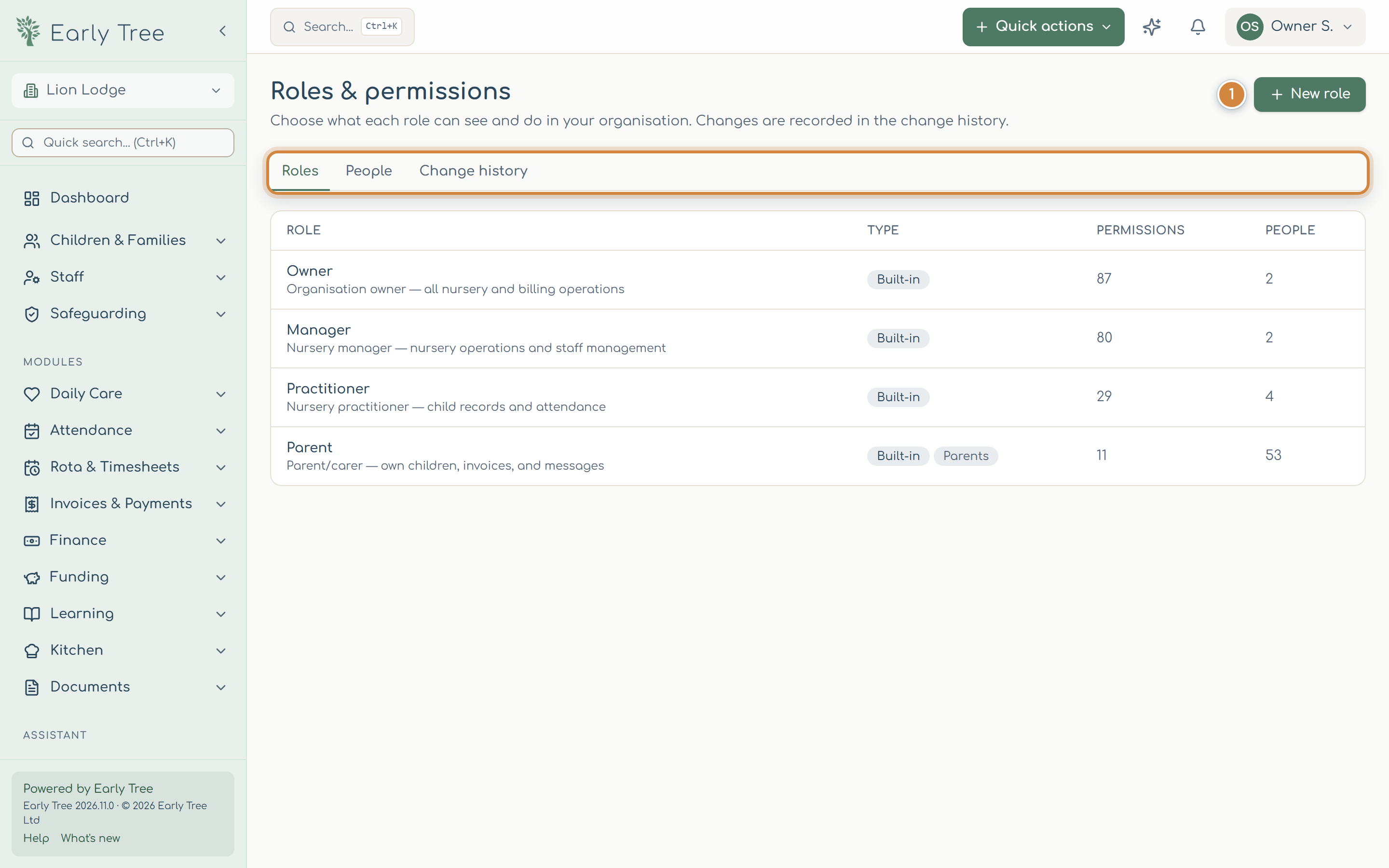
- Select Settings › Roles & permissions. The tabs (highlighted) are Roles, People and Change history.
- Open a role. Tick or untick what it can do, then select Save (the button shows how many changes you've made). If you grant something sensitive, Early Tree asks you to confirm.
- To start from scratch, select New role 1, name it, choose a role to Start from, and select Create role.
- Reset to Early Tree default puts a built-in role back as it came.
Change one person's access
- Open the People tab and select the person.
- Tick the roles they have.
- To make an exception for just this person, choose Grant or Deny next to a permission (or leave it From roles). Tick Only show what they can do to check the result.
- Select Save changes.
Access changes when the person's sign-in next refreshes, within 15 minutes.
Change history
Change history lists every change to roles and people's access: who made it and when.