Parent portal: messages and notifications
Purpose
Message the nursery securely, and choose how the nursery reaches you.
Send a message
- Select Messaging, then New message.
- Choose the Nursery, and the Child 1 if it's about one of your children.
- Pick a Quick template 2, such as We'll be dropping off late or My child is unwell today, or write your own Subject.
- Write your Message 3 and select Send 4.
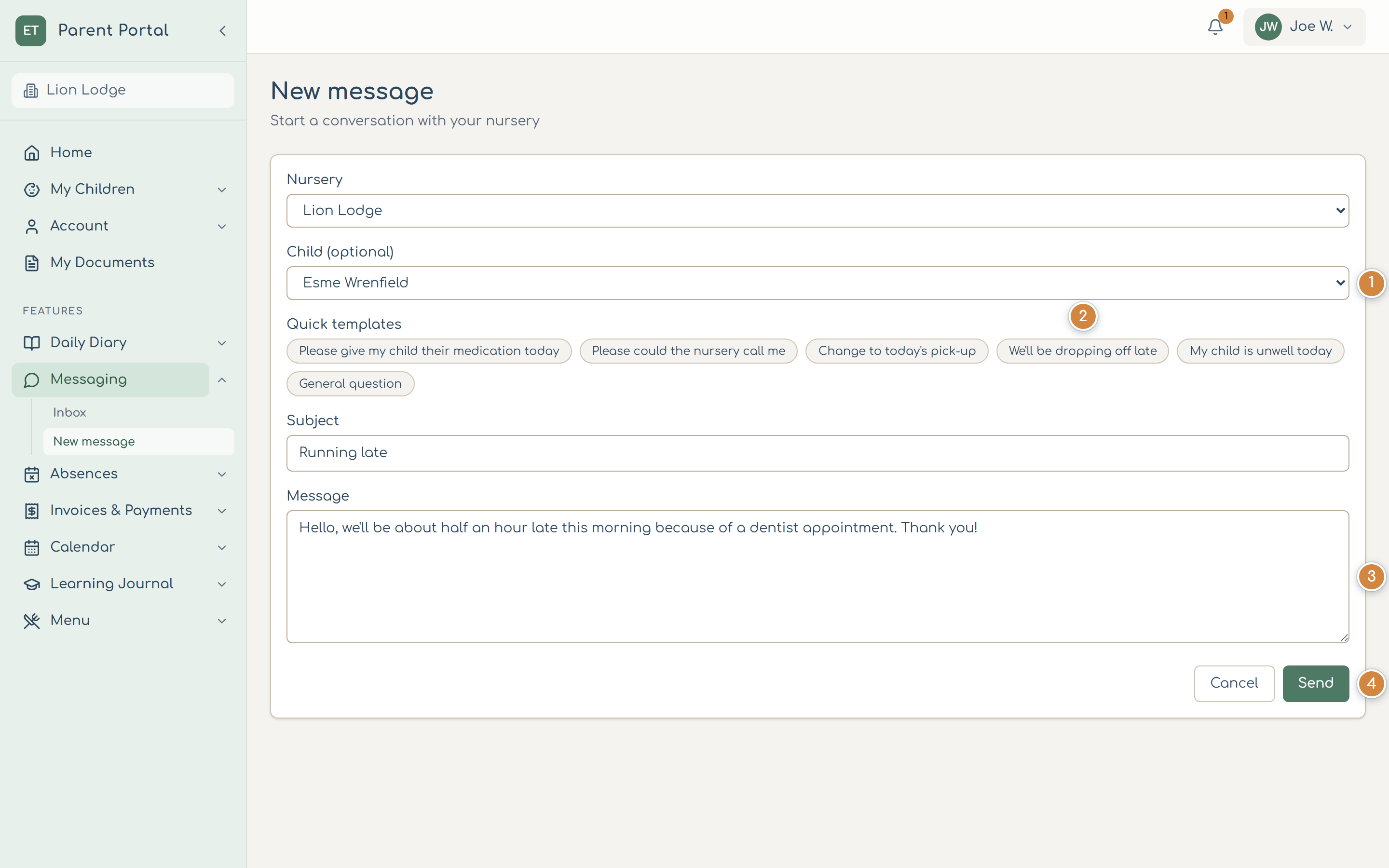
Replies appear under Messaging. You can attach a photo or document to a reply.
Urgent?
For anything urgent about your child's safety or health, phone the nursery. A message may not be read straight away.
Choose your notifications
- Open Account, then Notifications.
- For each kind of notification, choose whether you get it in the portal, by email or by text. Items with a lock can't be turned off: security emails, and accidents and safeguarding always reach you.
- Set quiet hours if you'd rather not be disturbed overnight, and choose whether emails come as they happen or as a daily or weekly summary.
- Select Save notification settings.
Text messages only work if your nursery has set them up. The portal tells you if push notifications or text messages aren't available yet.