Children: families and parent onboarding
Purpose
A family links brothers and sisters to the same parents and carers. You can add a new child yourself, or invite a parent to fill in the details (and consents) in the parent portal, then review what they send before it goes onto the child's record.
Before you start
- To invite a parent, they need an online account. On the family's Parents & Carers tab, a parent shows Has Account or No Account; for No Account, open the parent and select Create Online Account (it needs their email address).
The family's page
- Open Children & Families › Families and select the family.
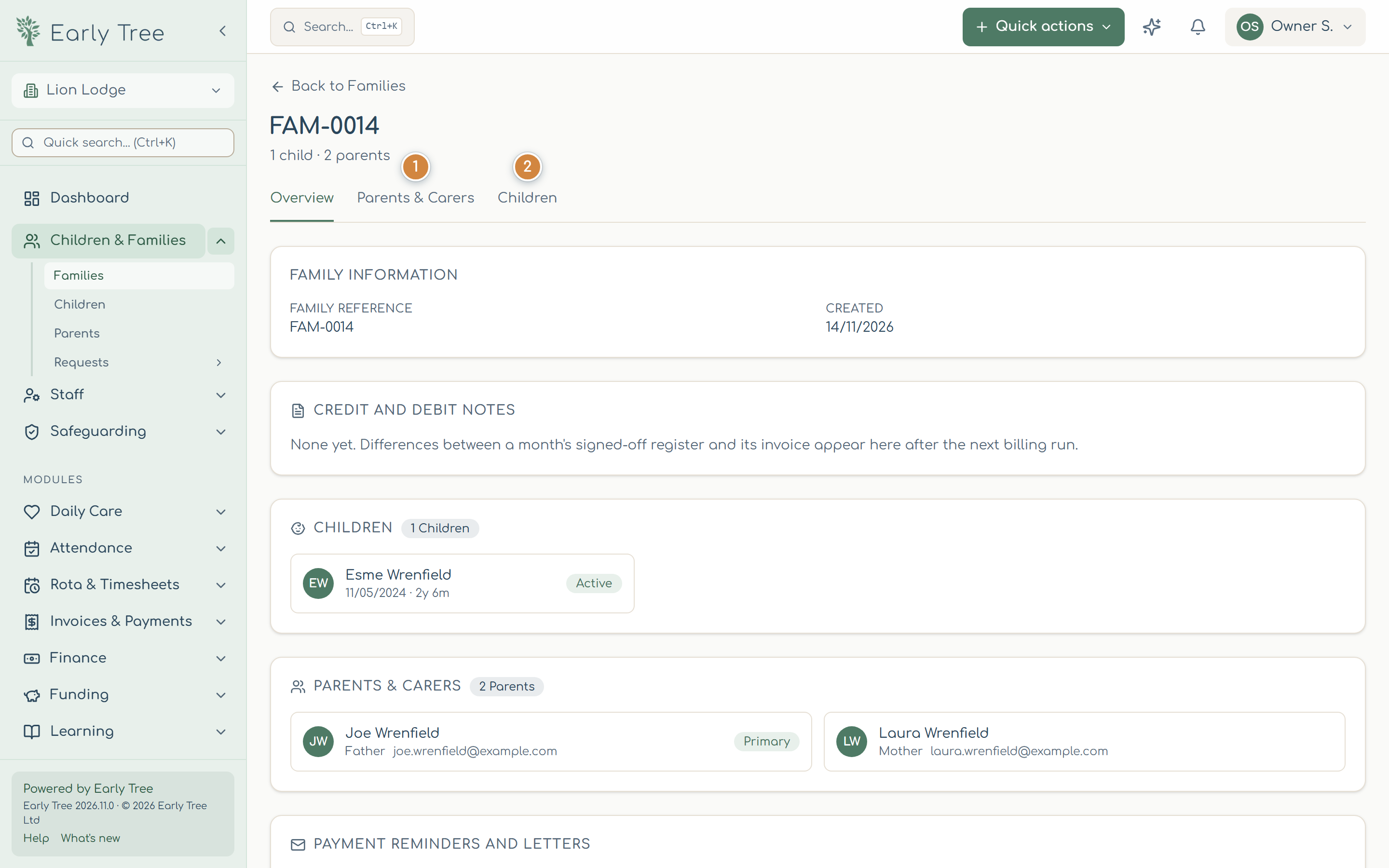
- Overview shows the family reference, its children and its parents and carers.
- Parents & Carers 1 lists each parent, who is the Primary Contact, and whether they have an online account. Select Add Parent to add one.
- Children 2 lists the family's children, with Register New Child and Invite parent to onboard.
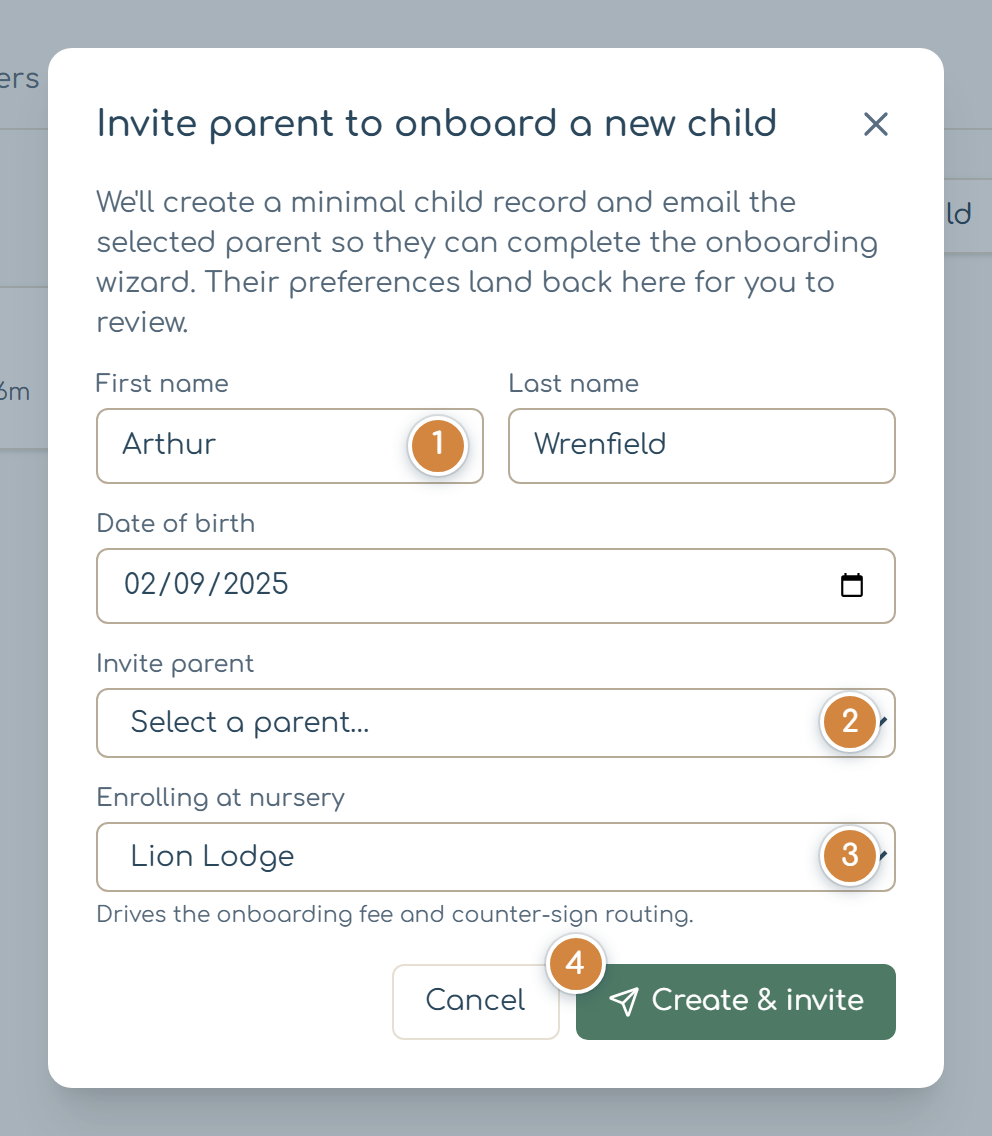
Invite a parent to onboard a new child
- On the family's Children tab, select Invite parent to onboard.
- Enter the child's First name 1, Last name and Date of birth.
- Under Invite parent 2, choose the parent who will fill it in.
- Under Enrolling at nursery 3, choose the nursery.
- Select Create & invite 4.
What you should see
The child's record opens with a Parent onboarding banner showing it's been invited. When the parent submits, the onboarding appears in Children & Families › Requests › Onboarding under Awaiting review.
Review what the parent sent
- Open Children & Families › Requests › Onboarding, then the child.
- Check what the parent has entered.
- Select Approve to copy it onto the child's record, or Send back with a note saying what to change. Waitlist and Reject are there for children you can't take yet, or at all.
After approval, the page says Onboarding approved — all submitted data has been copied to the child record.
Common problems
- The parent I want isn't in the Invite parent list.
- They don't have an online account yet. Create one from their parent page, then invite them.
- The invite says a child with the same name exists.
- Check it isn't the same child. For twins with the same name, tick the box to create a second record anyway.