Billing: monthly invoices and payments
Purpose
Bill each family once a month from what their children were booked for, with funded hours shown at £0.00, and keep track of what's paid and owed.
Before you start
- Booking patterns and funding entitlements are up to date.
- The month's registers are signed off. Differences between the signed-off register and what was invoiced are settled with credit and debit notes in a later run.
Run the month's invoices
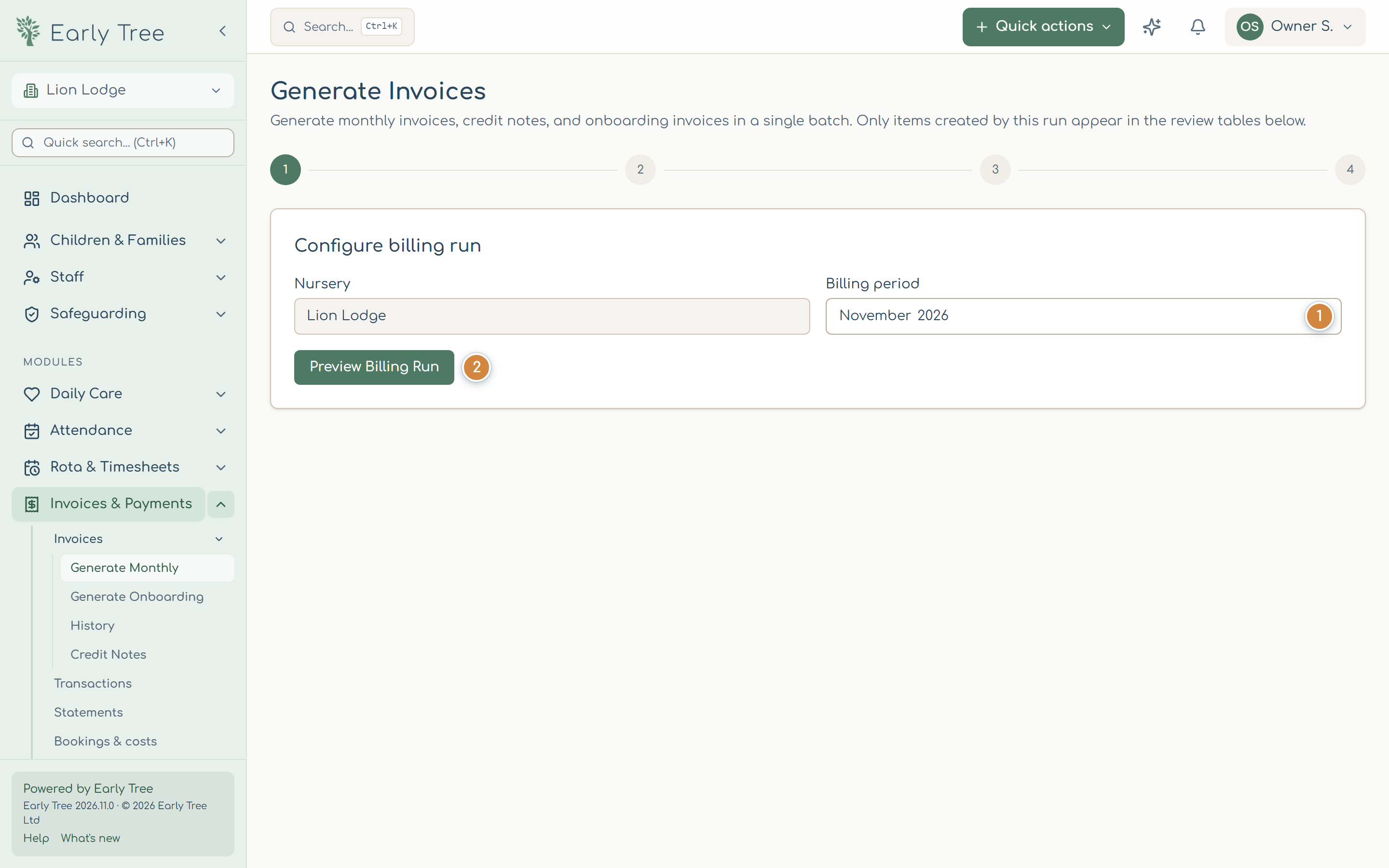
- In the menu, select Invoices & Payments, then Invoices › Generate Monthly.
- Choose the nursery and the Billing period 1 (the month), and select Preview Billing Run 2.
- Read any warnings (for example, weeks not yet signed off, or no term dates for the month), and check the counts of invoices and credit or debit notes.
- Select Execute Billing Run. The invoices are created as drafts.
- Review them, then Submit for review, Approve and Release, one at a time or with Submit all for review, Approve all and Release all. Releasing emails the invoice to the parents.
Check an invoice
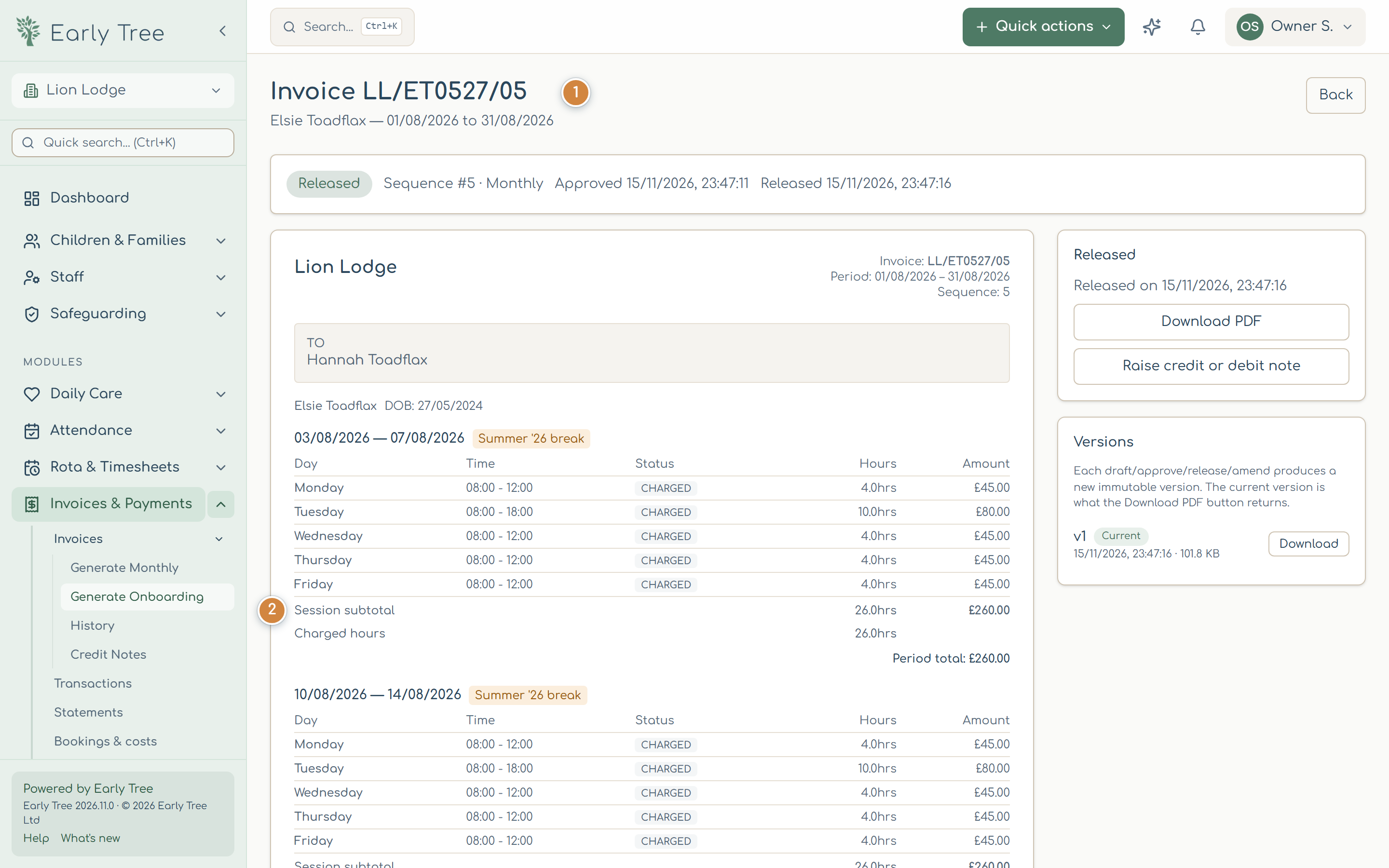
An invoice lists each week's days with their hours and amounts, and each week's totals 2. Funded days show Funded and £0.00, and the totals then include the week's funded hours as well as the charged hours. From the invoice you can Download PDF and, once it's released, Raise credit or debit note.
Record a payment
- Open Invoices & Payments › Transactions and select Record Payment.
- Find the child, enter the Amount, Payment Method and Payment Date, and a reference if you have one.
- Select Record Payment.
Credit and debit notes
On a released invoice, select Raise credit or debit note, choose Credit note (money back) or Debit note (extra charge), give a reason and the lines, and select Raise draft credit note. It goes through review and release like an invoice. Funded hours are never charged: a debit note is for paid hours and extras only.
Arrears
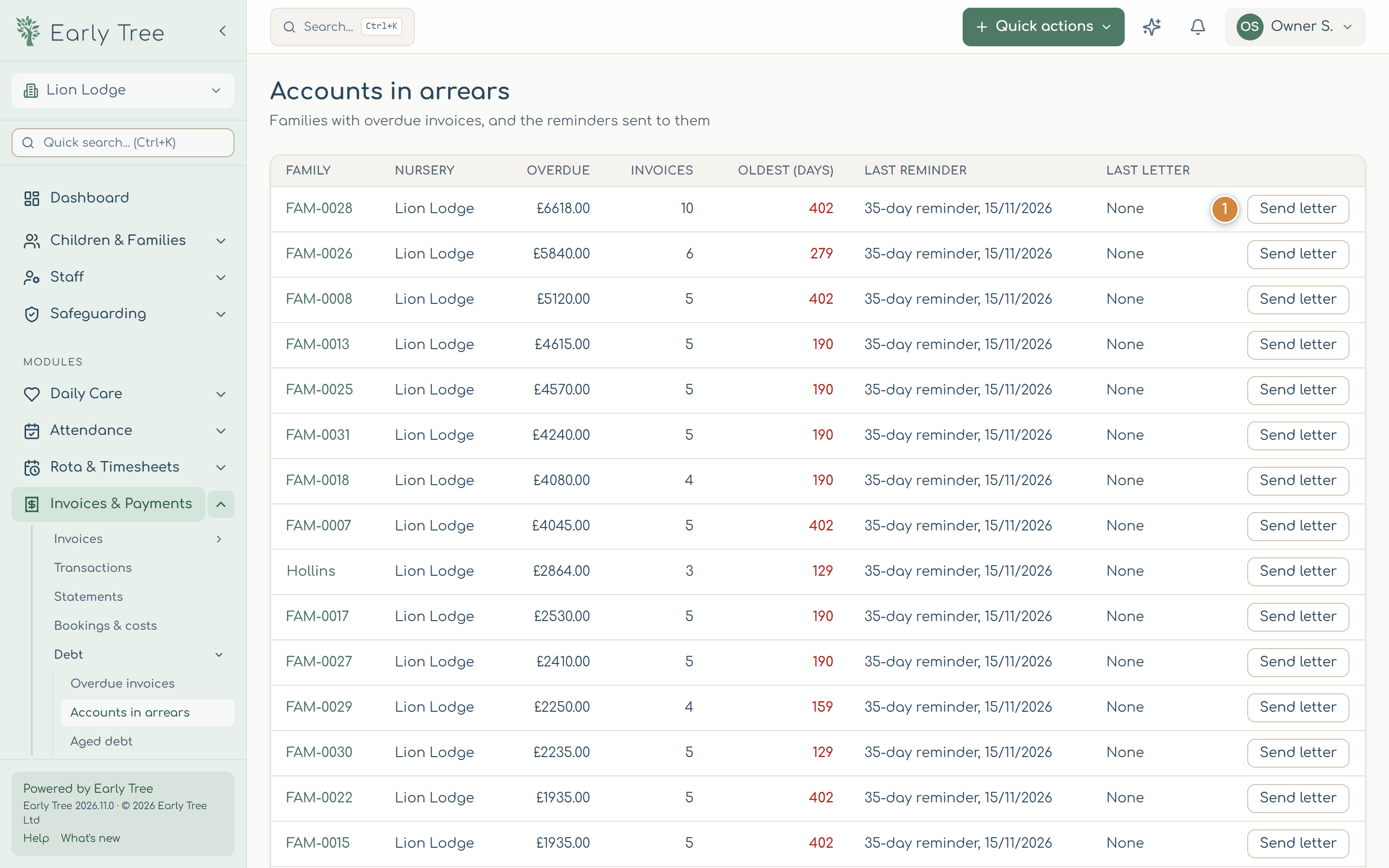
Invoices & Payments › Debt shows overdue invoices, accounts in arrears and aged debt. On Accounts in arrears, Send letter 1 sends a Friendly reminder, Firm reminder or Final notice to the family; it's kept on the family's account.
Common problems
- "N weeks not yet signed off".
- Sign off the registers for those weeks first, so invoices and registers agree.
- An invoice has nothing on it.
- The child has no booked sessions that month. Releasing it asks you to confirm before emailing the parents.
- An invoice is wrong after it's been released.
- Don't change it: raise a credit or debit note, so the record stays complete.