Staff: adding a member of staff
Purpose
Create a new starter's record, step by step, so they can be put on the rota, counted in ratios and checked for the single central record. You can stop at any step and come back: the record is kept as a draft until you finish.
Before you start
- Have their name, contact details, start date, contracted hours and usual working week.
- Have their highest relevant qualification and paediatric first aid certificate, if they have one.
Add them
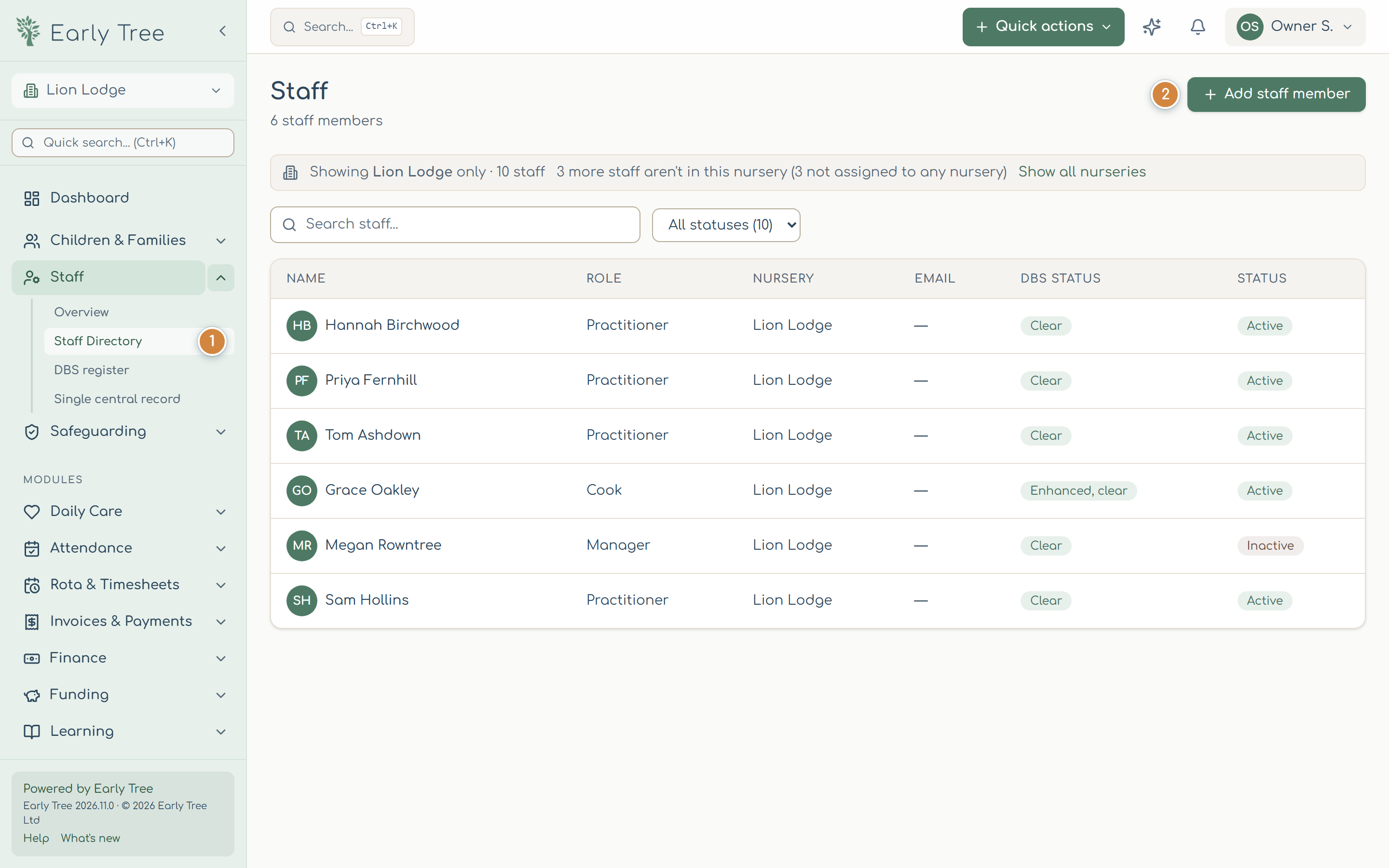
- In the menu, select Staff, then Staff Directory 1, and Add staff member 2.
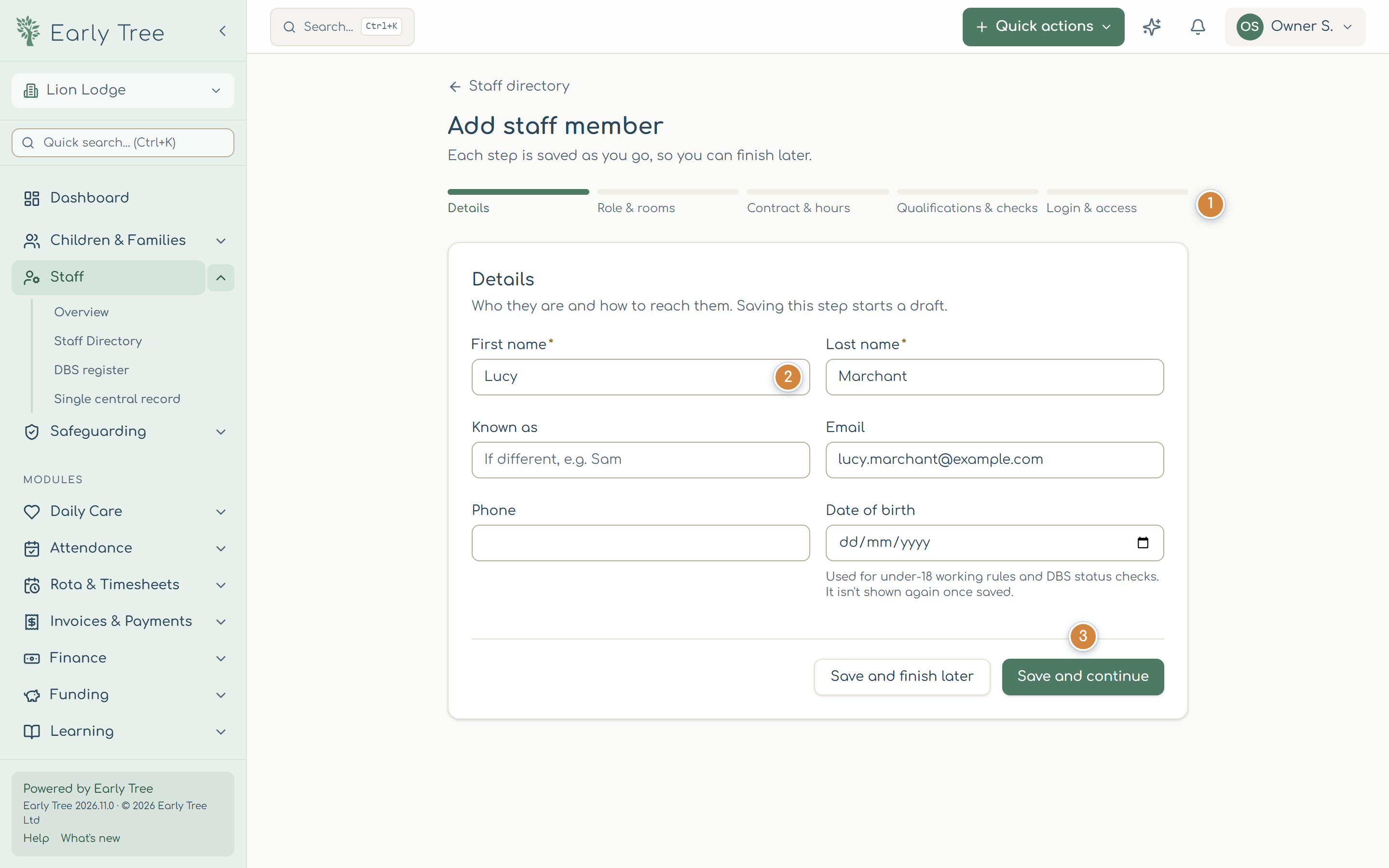
The steps are listed down the side 1: Details, Role & rooms, Contract & hours, Qualifications & checks and Login & access.
- Details: enter their First name 2 and Last name, and their email, phone and date of birth. Select Save and continue 3.
- Role & rooms: choose their nursery and role, whether they're a key person or a key holder, and either One home room or Floats between rooms.
- Contract & hours: their start date, whether they work all year or term time only, their contracted hours, and their Usual working week, day by day.
- Qualifications & checks: their highest relevant qualification, paediatric first aid certificate (issue and expiry dates) and their DBS check (see DBS checks).
- Login & access: switch on Invite them to sign in to Early Tree and choose their role in Early Tree, if they need to use it.
- Select Finish and add.
What you should see
Their record opens. They're in the staff directory, and their checks appear in the DBS register and the single central record, showing anything still missing.
Keep their record up to date
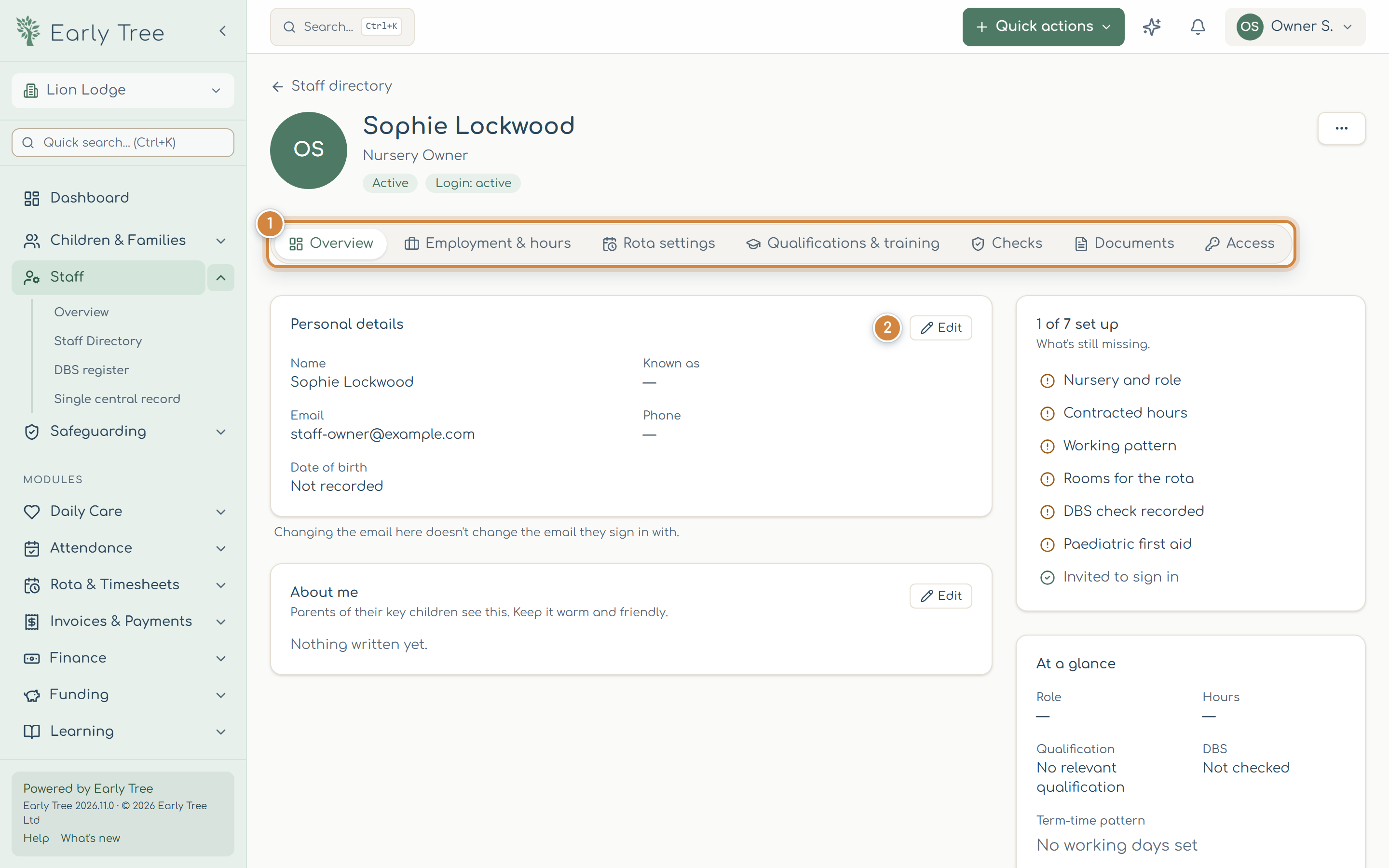
The record has tabs 1: Overview, Employment & hours, Rota settings, Qualifications & training, Checks, Documents and Access. Each section has its own Edit 2: change it and select Save, and nothing else on the record changes.
To record that someone has left, set their Leaving date under Contract & hours. More actions › Deactivate staff member… is for a record that shouldn't be used at all.
Common problems
- "Check the highlighted fields."
- Something on this step is missing or not valid; the message under the field says what.
- "This email is already used".
- There's already a record or draft for them. Use the link to continue that draft or open their profile.
- I started adding someone and stopped.
- Their draft is kept. Find them in the staff directory and carry on, or use Discard draft to remove it.