Funding: entitlements and agreements
Purpose
Record what each child is entitled to each term, get the parent's signed agreement, and send your local authority an accurate headcount.
Before you start
- Have the parent's eligibility code (for working-parent entitlements) and its expiry date. Early Tree doesn't check codes with HMRC: check them in your local authority's eligibility checker as usual.
- Your term dates are set up.
Record a child's entitlement
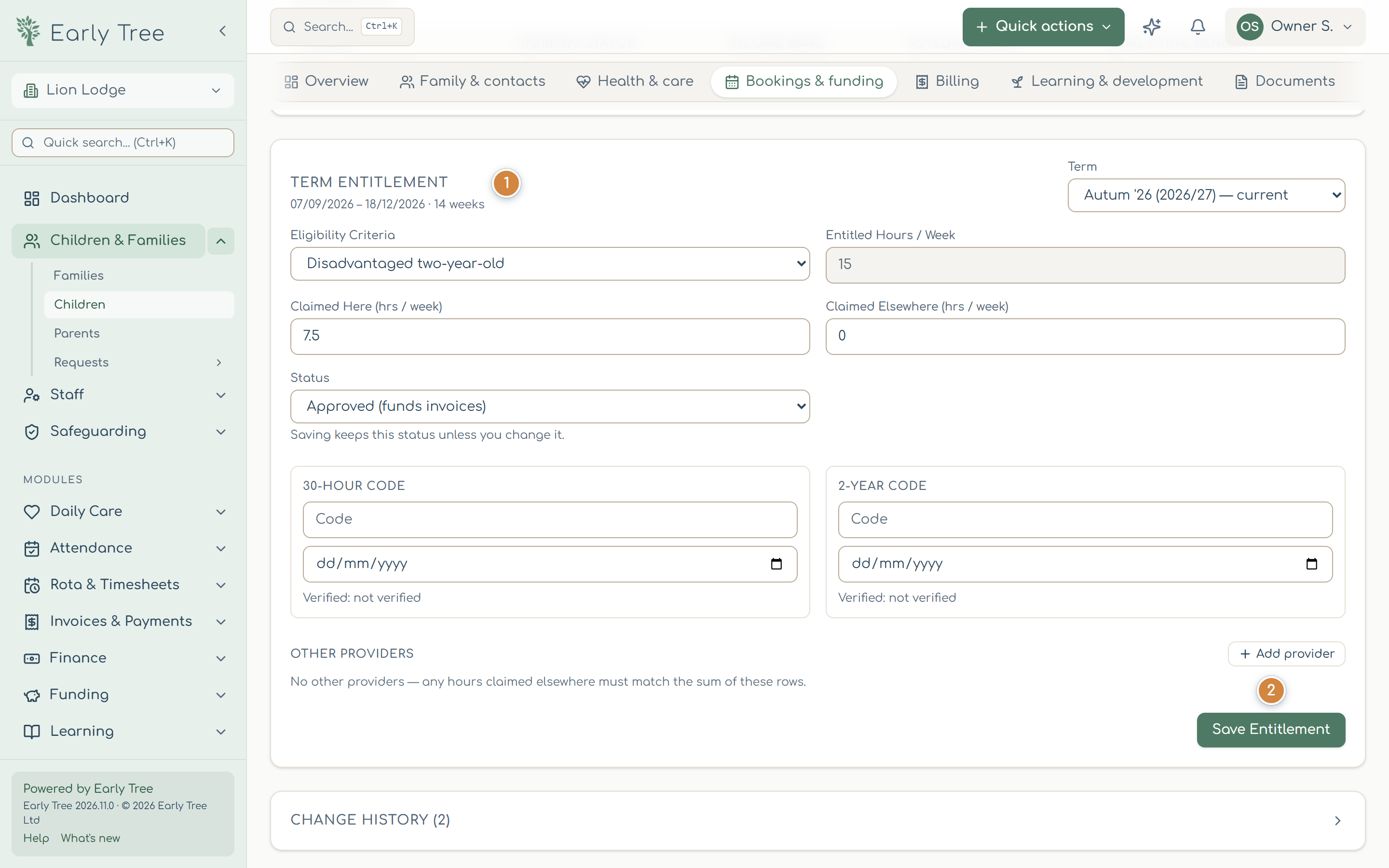
- Open the child's record, the Bookings & funding tab, and find Term Entitlement 1. Choose the term at the top right.
- Choose the Eligibility Criteria (for example Universal 15 hours or Extended 30 hours (working parents)). Entitled Hours / Week fills in.
- Enter the hours Claimed Here and Claimed Elsewhere (for a child who splits their hours with another provider, add the provider under Other Providers).
- Enter the 30-Hour Code or 2-Year Code and its date.
- Select Save Entitlement 2.
Funding agreements
- On the child's Funding Agreements tab, select New agreement, choose the nursery and term, and Create draft.
- Open it and select Send to parent. The parent signs it in the parent portal.
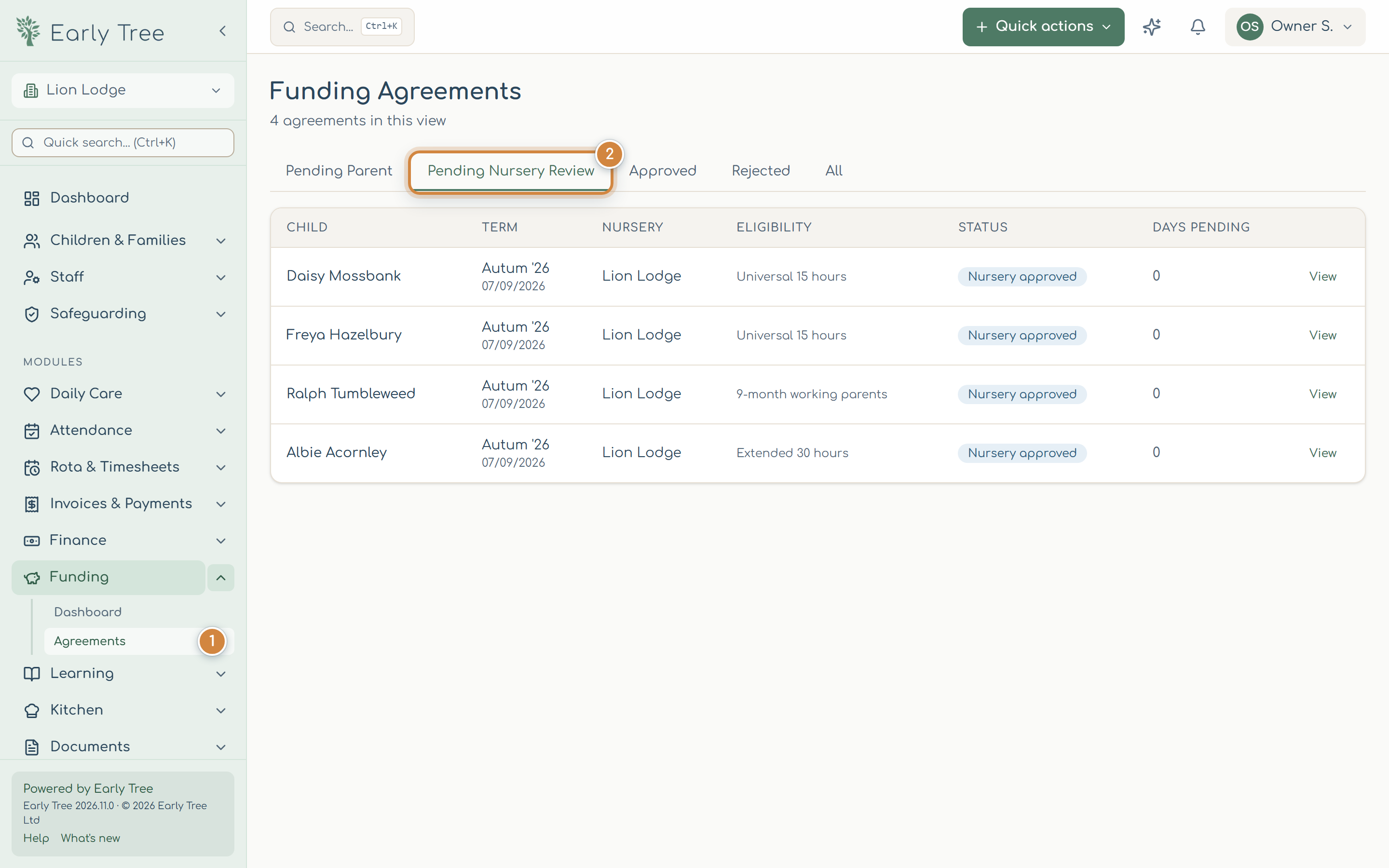
- Signed agreements wait in Funding › Agreements 1 under Pending Nursery Review 2. Open one, check it, and select Approve & counter-sign, then sign. Request changes sends it back with a reason. Pending Parent lists those still waiting for the parent.
Selecting Approve & counter-sign approves the agreement straight away, before you sign. If you close the signature window with Later, the agreement stays approved but not counter-signed. Come back and sign it.
Where your local authority has no Early Tree template yet, the agreement uses the generic form based on the DfE model parental declaration. Check your local authority accepts it.
The headcount
- Open Funding and select the Headcount export card.
- Choose the nursery and term, and select Download spreadsheet (.xlsx) 1 or Download CSV.
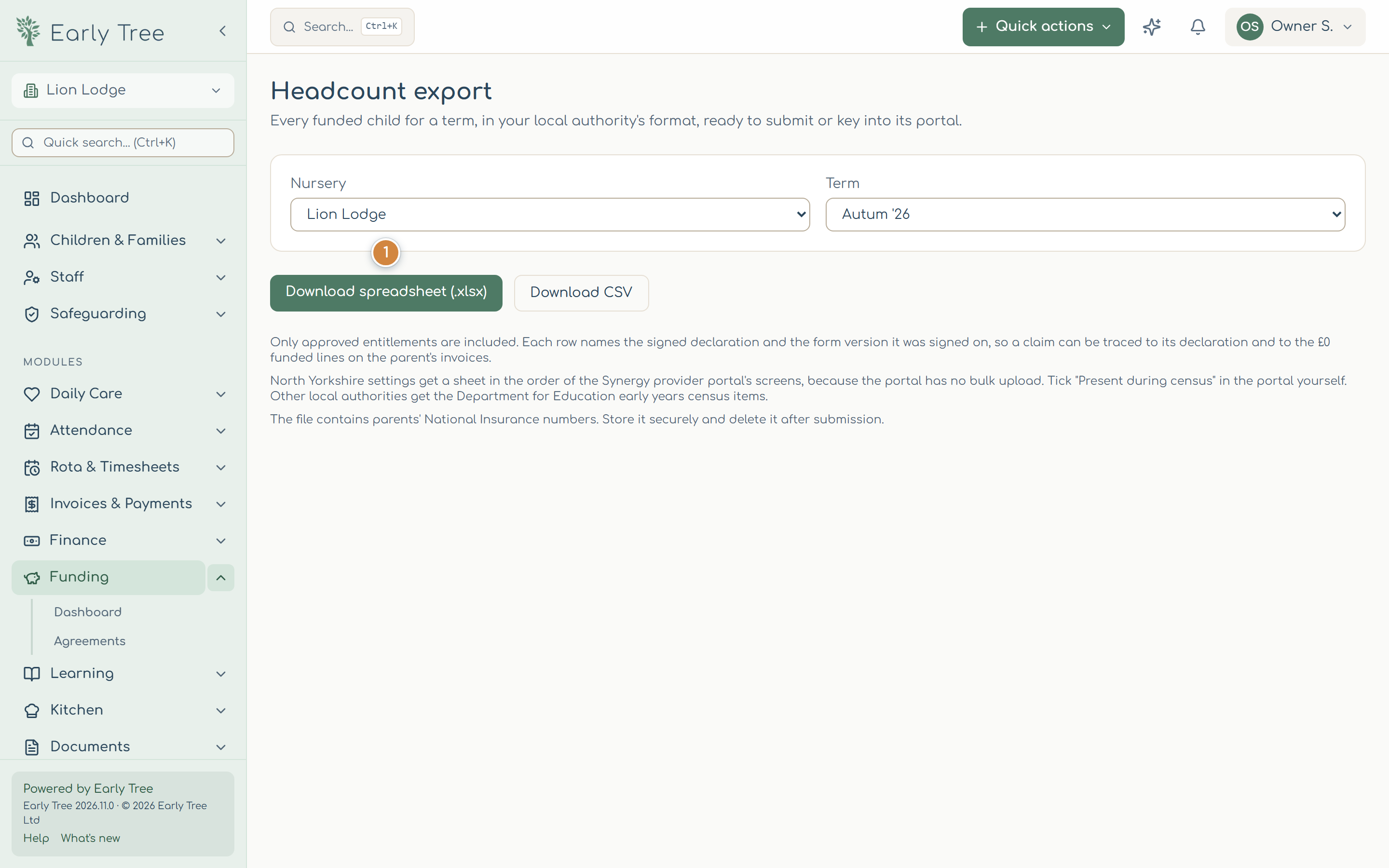
The file includes approved entitlements only, in your local authority's format where Early Tree has it, otherwise the Department for Education's early years census items. It contains parents' National Insurance numbers: keep it secure, and send it only through your local authority's secure route.
Common problems
- "A signed funding agreement covers this term".
- Changing the entitlement would contradict what the parent signed. If you must, select Override and save and give a reason, then send the parent a new declaration.
- A child is missing from the headcount.
- Only approved entitlements are included. Check the child's entitlement status for that term.