Billing: sessions and booking patterns
Purpose
Set what each session costs, or that it's funded, and say which sessions each child comes for. Registers, ratios and invoices all follow from the booking pattern.
Before you start
- Decide your sessions: for example a funded core of 08:00 to 12:00, with paid time before or after.
- A child's booking needs a room: assign one on their record first.
Session types
- Open Settings and select Session Types. Each session shows its times and either Funded 2 or its price 3.
- Select Add Session Type 1.
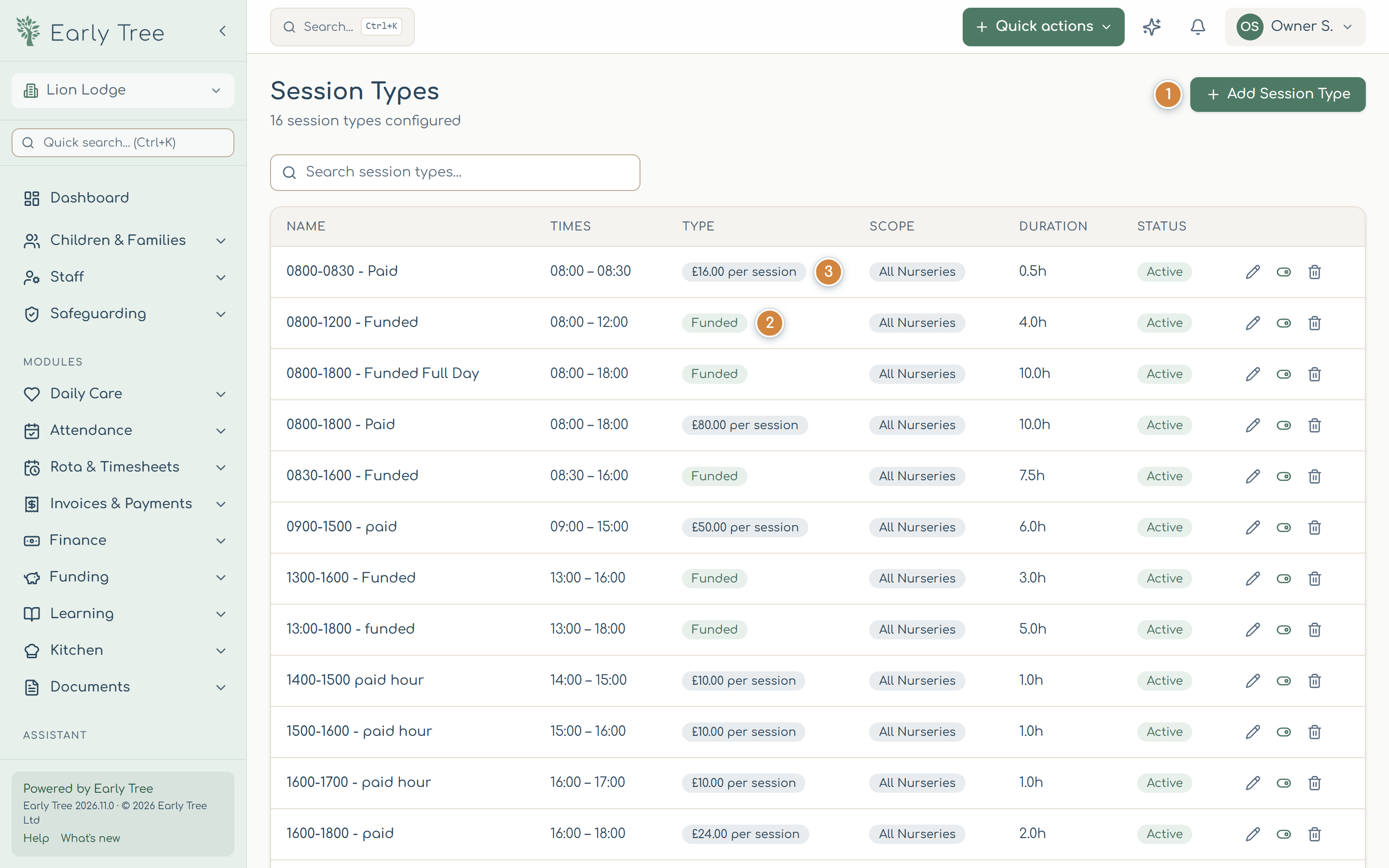
- Enter the Name, and the Start Time and End Time.
- Choose which nurseries it's for.
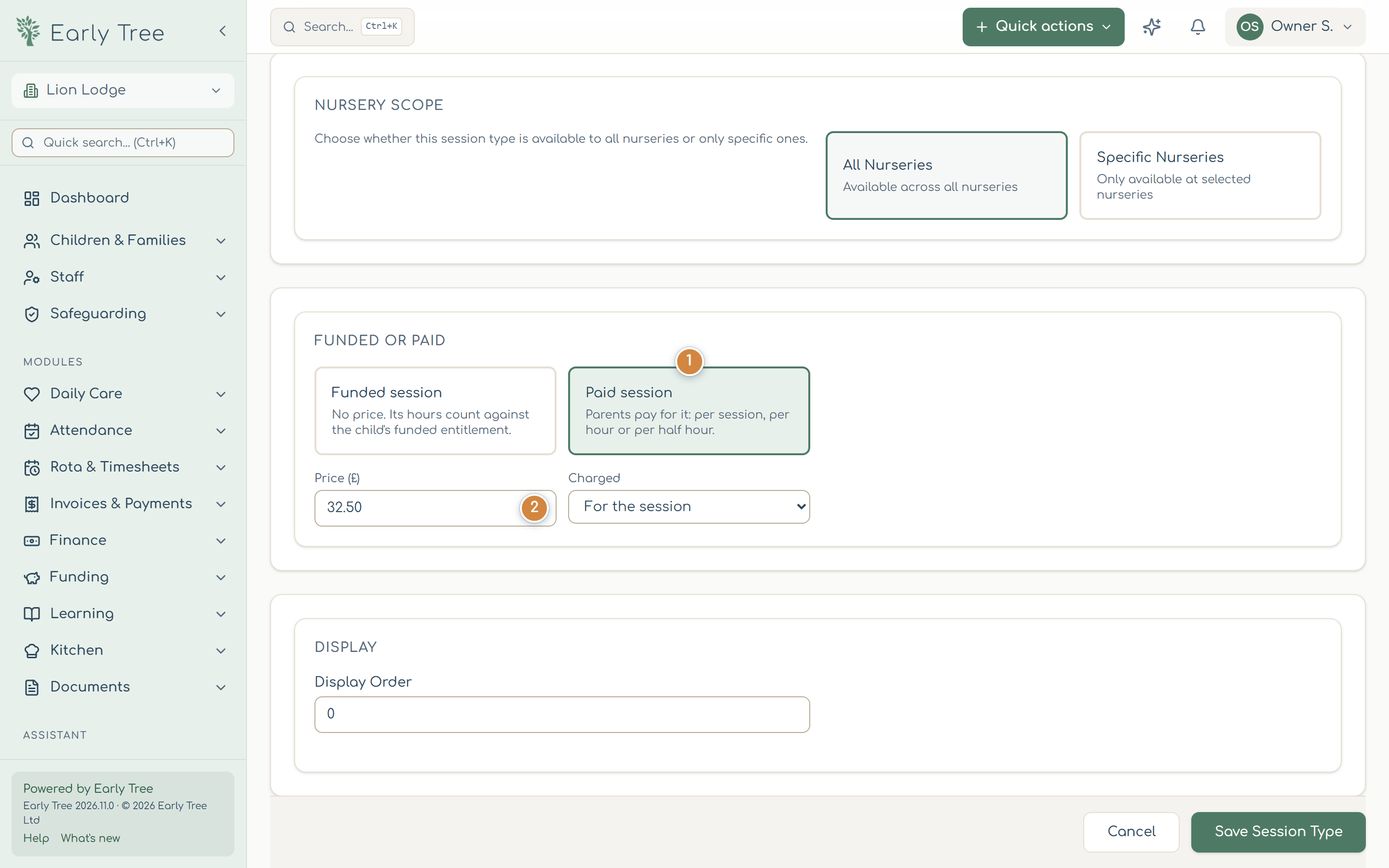
- Under Funded or paid, choose Paid session 1 and enter the Price (£) 2, charged for the session, per hour or per half hour. For a funded session, choose Funded session and tick the funding types it can be claimed under.
- Select Save Session Type.
Extras (for example, lunch or nappies) are set up the same way under Settings › Extras, with a default amount.
A child's booking pattern
- Open the child's record, the Bookings & funding tab, and select Set up a booking (or Change booking).
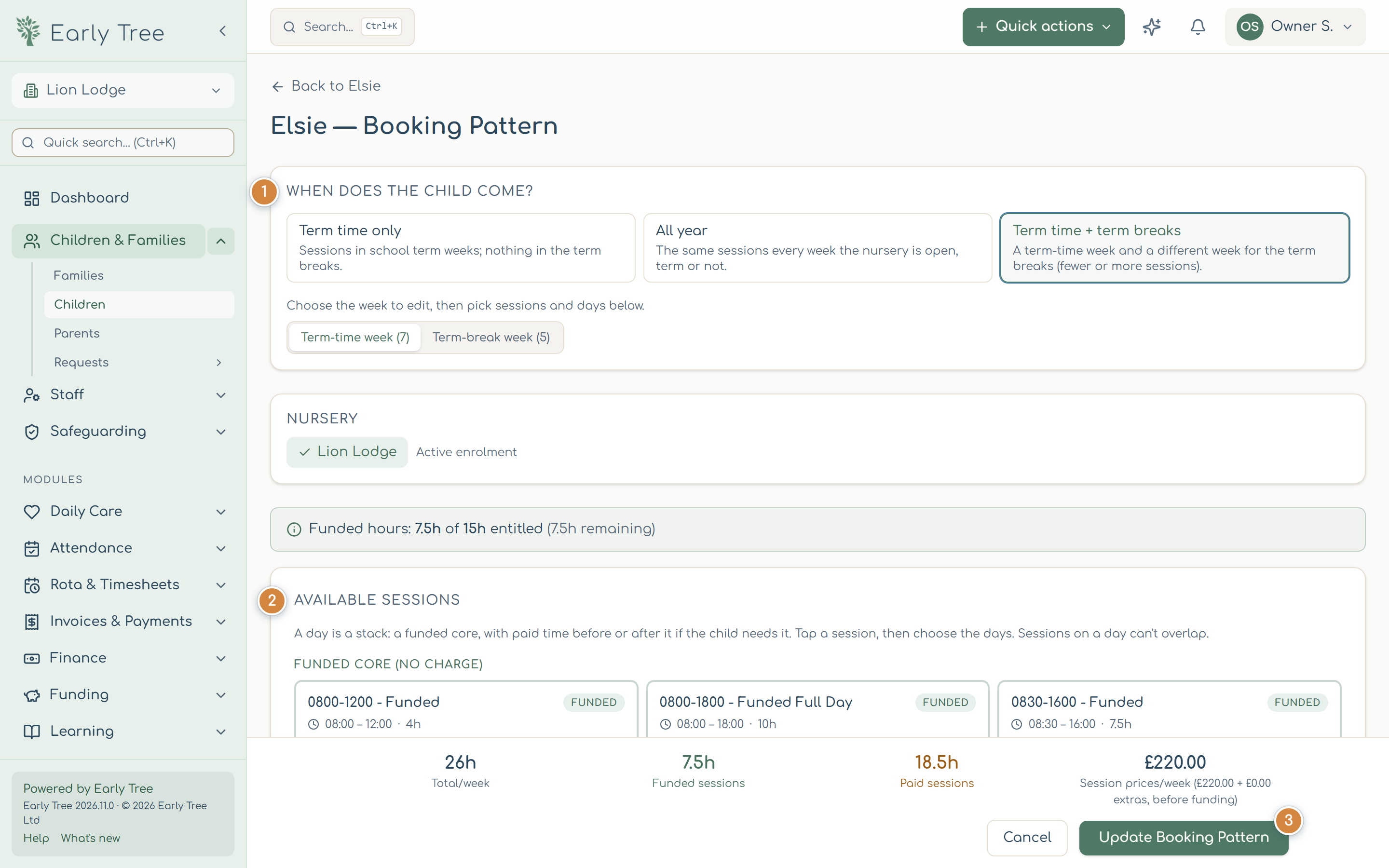
- Under When does the child come? 1, choose Term time only, All year, or Term time + term breaks (a different week for the breaks).
- Under Available Sessions 2, select a session, then the days. A day is a stack: a funded core, with paid time before or after it if the child needs it. Sessions on a day can't overlap.
- Set the date the pattern Starts on (or Takes effect from, for a change), and an end date if there is one.
- Check the totals at the bottom (total, funded and paid hours, and the weekly price), then select Save Booking Pattern or Update Booking Pattern 3.
What you should see
The child's record shows the new booking pattern, and from its start date they appear on the register and are invoiced for it.
Common problems
- "A paid session needs a price" or "Choose at least one funding type".
- Every session is either paid (with a price) or funded (with the funding types it can be claimed under), never both.
- Save is disabled and the funded hours line is red.
- The pattern books more funded hours than the child is entitled to. Funded sessions are never part-charged: book fewer funded sessions, or paid sessions for the extra time.
- "No funding entitlement for the current term".
- Record the child's entitlement first (see Funding entitlements).
- "Assign a room before…".
- Give the child a room on their record, then come back.