Parent portal: invoices and payments
Purpose
See what you owe and why, pay online, and make sure the nursery can match your Tax-Free Childcare and voucher payments.
Your invoices
- Select Invoices & Payments.
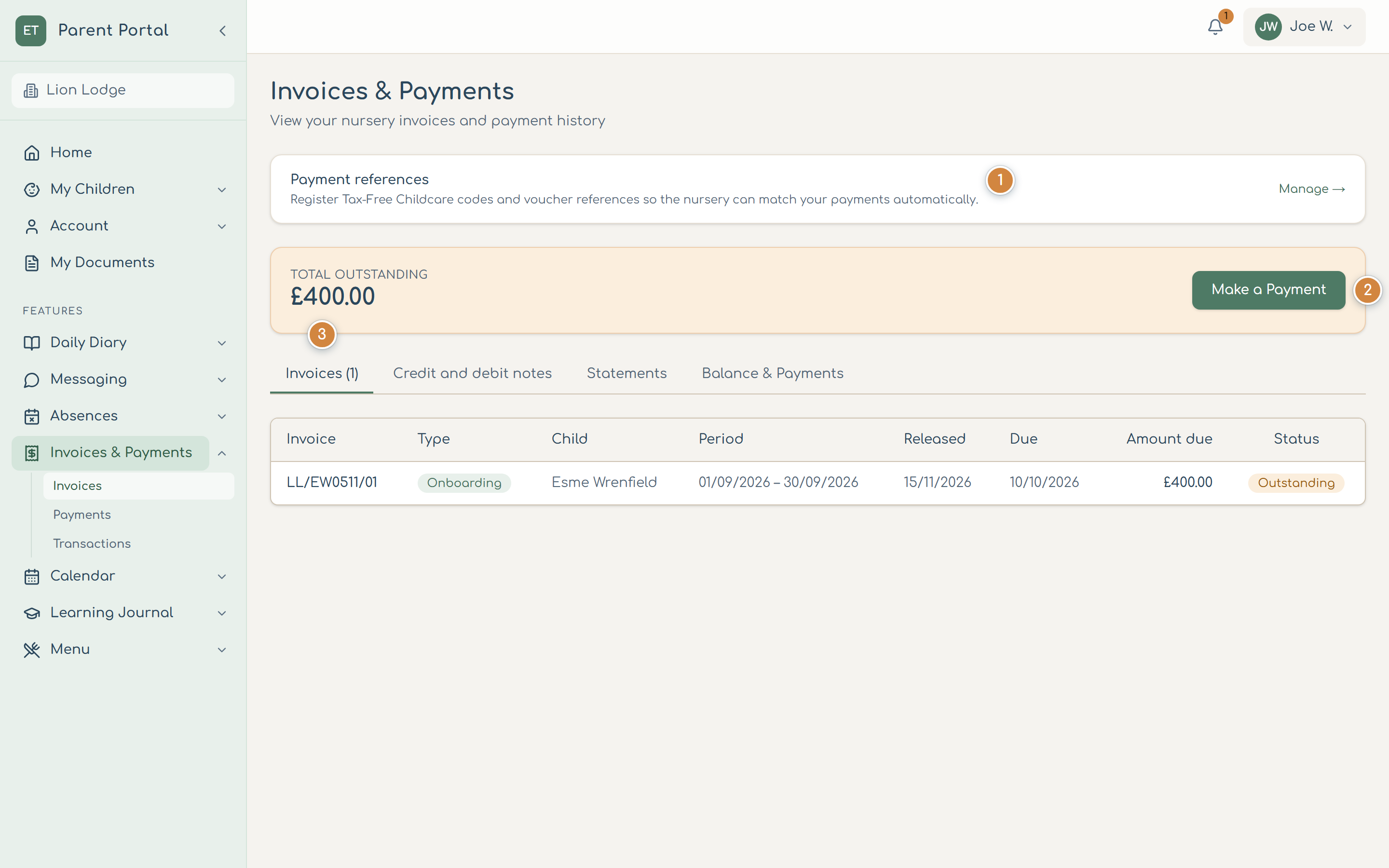
- Add your Payment references 1 (your Tax-Free Childcare reference and any childcare voucher references) so the nursery can match those payments to your account automatically.
- Total outstanding shows what you owe. Select Make a Payment 2 to pay by card.
- The Invoices tab 3 lists your invoices, newest first. Select one to see its lines. Credit and debit notes show any adjustments after the month, for example for extra sessions; Statements and Balance & Payments show your account over time.
Pay online
- Select Make a Payment.
- Choose Pay full outstanding balance, Pay latest invoice or Pay a custom amount.
- Select Continue to payment, enter your card details and select Pay.
- Payment Successful confirms it; the payment appears under Balance & Payments.
Common problems
- My Tax-Free Childcare payment isn't showing.
- Check your reference under Payment references; the nursery matches payments by it. Payments can take a few days to arrive.
- An invoice looks wrong.
- Message the nursery from Messaging, quoting the invoice number.